Conditional Sections
Overview
Conditional Sections let a single Snippet cover multiple versions of the same message. Instead of keeping a separate Snippet for each scenario, you build the versions once and select the one you need when you expand.
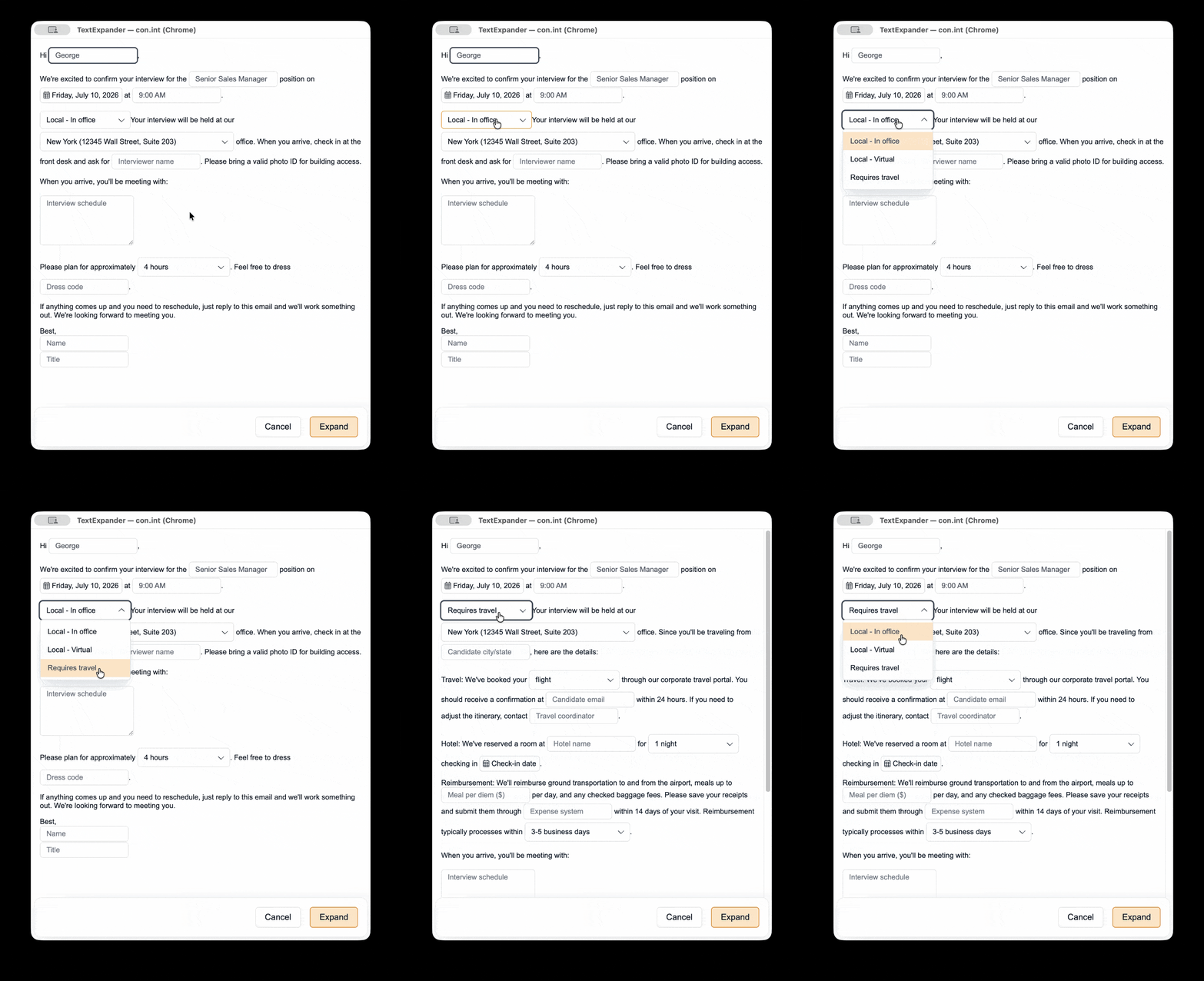
A Conditional Section contains branches, and each branch holds its own content. When you expand the Snippet, you select one branch from a dropdown in the fill-in window, and only that branch’s content is inserted. The branches you don’t select produce no output, leaving no extra spacing or formatting behind.
Conditional Sections are available on all paid TextExpander plans.

How Conditional Sections work
The Conditional Section is the question, and the branches are the possible answers.
For example, an interview confirmation email might need 3 versions depending on where the interview takes place. Rather than 3 Snippets, you create one Snippet with a Conditional Section that contains 3 branches:
- Local, in office – office address, check-in instructions, and photo ID reminder
- Local, virtual – video link, tech check reminder, and coordinator contact
- Requires travel – office address, flight and hotel booking details, and reimbursement instructions
The greeting, interviewer names, and closing stay the same for every version. Only the content inside the Conditional Section changes.

Conditional Sections and Optional Sections
TextExpander supports both Conditional Sections and Optional Sections, and you can use both in the same Snippet.
| Optional Section | Conditional Section | |
|---|---|---|
| Selection method | Checkboxes | Dropdown menu |
| Number you can select | Any number, including none | Exactly one |
| Use it for | Content that is sometimes included, such as a disclaimer | Content that changes based on a single decision, such as plan type, region, or visit type |
| At expansion | All options are visible | Only the selected branch is visible |
Use an Optional Section to include or exclude a block of content. Use a Conditional Section to choose between versions of a block of content.
How to create a Conditional Section
- Open or create a Snippet.
- Place your cursor where the content should change.
- In the editing bar, select the Fill-ins button.
- From the dropdown, select “Conditional Section.”
- Enter the content for the first branch between the two indicators of the Conditional Section.
- Save the Snippet.
How to add, rename, reorder, and delete branches
- Add a branch: Select the + icon on the front indicator, or open the branch dropdown and select “+ Add branch.” Then enter the content for that branch.
- Rename a branch: Open the branch dropdown, select the branch name, and enter a new one. Branch names appear in the dropdown at expansion, and they are never included in the expanded text.
- Reorder branches: Open the branch dropdown and drag a branch into position. This sets the order shown at expansion.
- Delete a branch: Open the branch dropdown and select the trash can icon next to that branch. Deleting a branch also deletes its content.
What you can include in a branch
Each branch can contain:
- Text, formatting, and links
- Single-line, multi-line, dropdown menu, and date picker Fill-ins
- Macros
- Other Snippets, using Insert Snippet
- Images and tables
- Another Conditional Section
At expansion, the Fill-ins that belong to the selected branch appear in the fill-in window. Fill-ins that belong to unselected branches stay hidden.
How to nest Conditional Sections
You can place a Conditional Section inside a branch of another Conditional Section, so one selection leads to a follow-up selection.
For example, a customer support reply might use three levels of Conditional Section nesting:
- Level 1 – Issue type: Billing question, Cancel request, or Upgrade request
- Level 2 – Reason, inside the Cancel request branch: Too expensive, Switching tools, or Not using it enough
- Level 3 – Offer, inside the Too expensive branch: Annual discount or Smaller plan
Each level appears only once you make the selection above it.
Using multiple Conditional Sections in a Snippet
A Snippet can contain as many Conditional Sections as you need, and they don’t have to be next to each other. Place one near the top of a Snippet and another near the bottom, with standard text in between.
Each Conditional Section is independent. Selecting a branch in one Conditional Section has no effect on the others. A Snippet with a greeting Conditional Section and a closing Conditional Section prompts for 2 separate selections.
How to expand a Snippet with Conditional Sections
- Type the Snippet abbreviation. The fill-in window appears.
- Select an option from each dropdown.
- The fill-in window updates to show only the fields that apply to the selected branch.
- Complete the remaining fields and select “OK.”
Only the content from the selected branches is inserted into the expansion.
To change a selection, select a different option from the dropdown before you complete the fill-in window. The content updates to match.
Ready-made examples
A public Snippet Group of example Conditional Sections is available to subscribe to: Conditional Sections examples.
Subscribe to the group, open a Snippet, and switch between its branches to see how it is built. You can copy Snippets from this group into your own library and edit them.
Where Conditional Sections work
Conditional Sections are available in TextExpander for Mac, Windows, and Chrome, and in the web app at app.textexpander.com.
Mac, Windows, and Chrome require version 8.4.6 or later. Snippets that contain Conditional Sections expand only on version 8.4.6 and later, so confirm that your team is up to date before you add Conditional Sections to a shared Snippet Group.
Additional details
- Conditional Sections work in Plain Text and Rich Text Snippets. They are not available in JavaScript, AppleScript, or Shell Script Snippets.
- Name branches descriptively. Branch names are what your team sees in the dropdown at expansion.
- The editor shows one branch at a time. Switch through every branch, including nested ones, before you share a Snippet.
- Build and test in a Just Me Snippet Group first, then copy the Snippet into your Organization’s shared library.
- Deleting a Conditional Section removes all of its branches and their content. The rest of the Snippet stays intact.
- If your Organization uses Requests, you can propose a Snippet with Conditional Sections for the shared library. Learn more in Proposing New Snippets and Snippet Changes with Requests.