Snippet Editor Spell and Grammar Check
Overview
As you write or edit a Snippet in the Snippet editor, TextExpander checks your text for spelling and basic grammar issues and suggests fixes. It:
- Underlines possible spelling and grammar issues as you type
- Suggests a replacement when one is available
- Applies a fix with a single click
- Keeps your original wording when you’d rather leave it as is
- Lets you add team-specific words to a dictionary so they stay unflagged
- Supports languages beyond English
You stay in control. TextExpander suggests changes and leaves the final wording to you.
How highlights and suggestions work
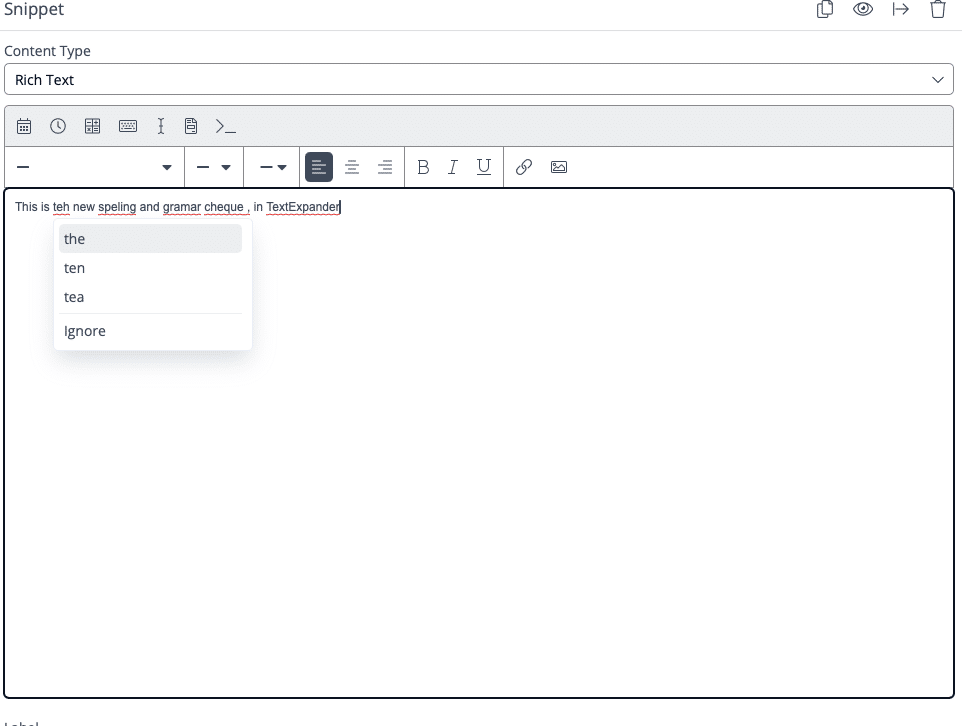
When the Snippet Editor spots a possible issue, it underlines the word or phrase in your Snippet. Different colors mean different kinds of issues, and clicking the underlined text opens a suggestion popover with your options.
What the colors mean
Red underline: possible spelling issue. A word that doesn’t match the dictionary. Example: recieve → receive.
Blue underline: basic grammar issue. Things like subject-verb agreement, missing articles, or duplicated words. Example: an team → a team.
Yellow underline: more complex grammar or style suggestion. Sentences that are technically valid but could be clearer. You can safely ignore these when your wording is intentional.
Reviewing a suggestion
- Click the underlined word or phrase.
- The suggestion popover opens with a short explanation of the issue.
- If replacements are available, you’ll see them.
- Choose one of the following:
- Click a suggestion to apply it. The underline goes away and your Snippet updates in place.
- Ignore to keep your original wording. The underline goes away and TextExpander stops flagging that specific instance.
- Edit yourself. Close the popover and edit the text directly to write something different from the suggestion.
Saving your Snippet
You can always save your Snippet, even with underlines still visible. The check is a helper, not a gate, so your workflow stays the same.
What the checker skips
The checker reviews only the plain text you wrote, so it leaves the following alone:
- Fill-in fields, date fields, and other Snippet tokens
- Content inside URLs
- Formatting markup
Add Snippet-specific tokens freely, and the checker treats them as intended rather than as typos.