Dark mode on TextExpander for Windows
TextExpander 8.4.2 for Windows follows your system’s dark mode setting. When you switch Windows to dark mode, TextExpander switches with it, no extra configuration needed.
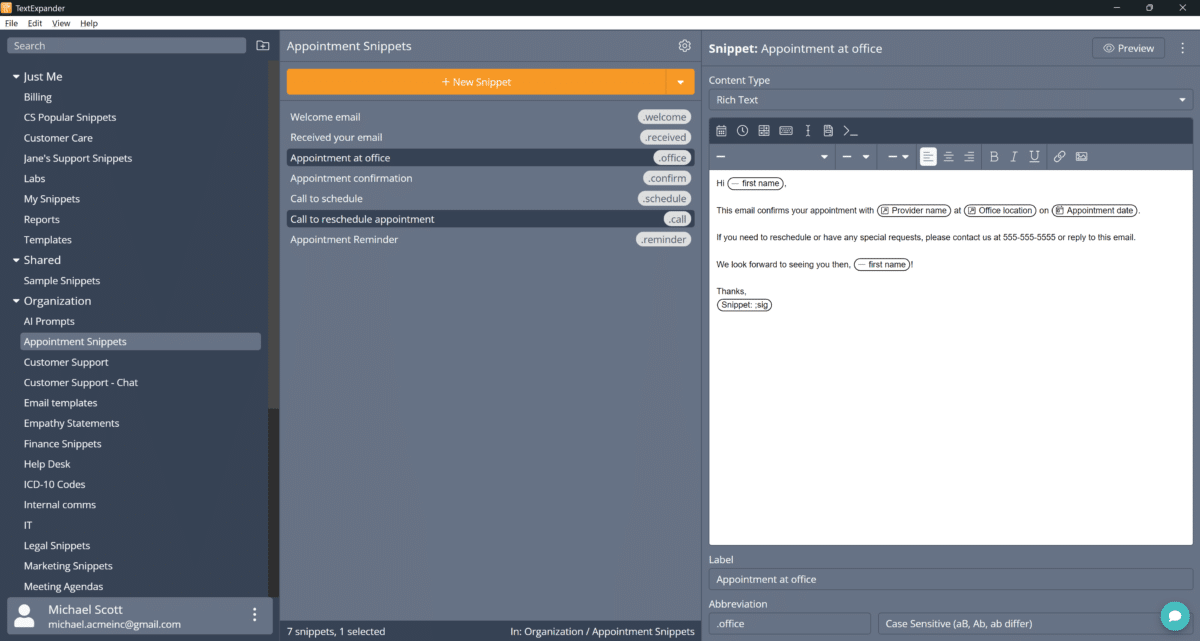
How it works
TextExpander detects your Windows theme automatically. When you change your system appearance from light to dark (or back), TextExpander updates in real time. The app monitors your Windows display settings and applies the appropriate theme to all its windows.
You don’t need to toggle anything inside TextExpander. The app adjusts to whatever you’ve set at the system level.
Changing your Windows theme
- Open Settings on your Windows PC.
- Go to Personalization > Colors.
- Under Choose your mode, select Dark, Light, or Custom.
- TextExpander will follow your selection immediately.
If you use a third-party theme switcher like PowerToys, TextExpander responds to those changes, too.
Compatibility
- Windows 10: Supported on the latest builds.
- Windows 11: Fully supported, with native drop shadows for a polished look.
Known limitations
A few UI elements don’t yet support dark mode styling:
- Menu bar: The native Windows menu bar remains in light mode. This is a Windows platform limitation for Win32 apps that would require dropping Windows 10 support to resolve.
- Update dialogs: The WinSparkle update window stays in light mode. The “What’s New” content inside it can display dark, but the dialog frame itself doesn’t support dark styling.
- Fill-in popups and message boxes: Some system-level dialog windows may appear in light mode if you’re on TextExpander 8.4.2. Update to 8.4.3+ to have fill-in windows honor your system’s dark mode setting.
- Window borders on Windows 10: Pop-up dialogs may show light-colored borders that blend into a dark background. Windows 11 mitigates this with built-in drop shadows. If you don’t see drop shadows on Windows 11, check that visual effects are enabled in your system performance settings.
Additional details
- Dark mode is available in TextExpander 8.4.2 for Windows or later.
- To have fill-in windows honor your system’s dark mode setting, make sure you’re on TextExpander 8.4.3+.