Fill-in Suggestions
Overview
Fill-in Suggestions find text in a Snippet that would work better as a fill-in and offers to convert it in one click. Names, dates, and placeholders like [Customer Name] get a dotted underline in the Snippet editor. Select one to turn it into a fill-in, so the Snippet asks for that information every time it expands.
Fill-in Suggestions are available on all TextExpander plans in TextExpander for Mac, Windows, and Chrome, and in the web app at app.textexpander.com. To use them in the Mac or Windows app, make sure you’re on version 8.6 or later.
Not able to play the video? Click here to watch the video
Converting a suggestion
- Open a Snippet in the Snippet editor.
- Select the underlined text.
- A menu appears with the suggested fill-in. Select it to convert the text.
- To use a different fill-in type, select one of the other options in the menu instead.
The new fill-in is named after the placeholder, so [Company] becomes a field called “Company.” Double-click the fill-in to edit its settings.

Converting all suggestions at once
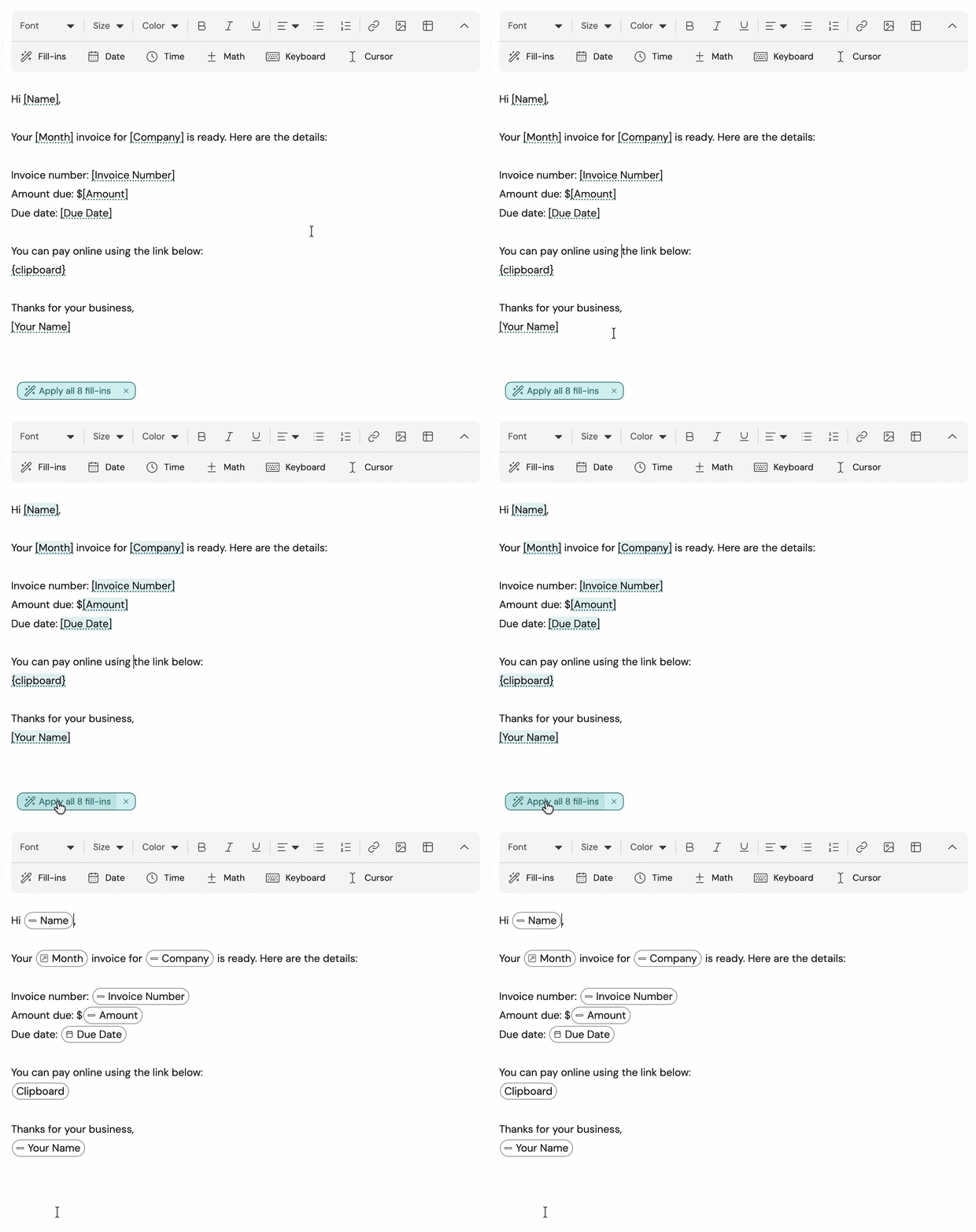
When a Snippet has 2 or more suggestions, an Apply all button appears in the Snippet editor.
- Hover over Apply all to preview which text will change.
- Select Apply all to convert every suggestion to its suggested fill-in.
To undo a conversion, including Apply all, press Command+Z on Mac or Control+Z on Windows.
Ignoring a suggestion
To keep text as it is, select it and choose Ignore. The underline disappears from that text and any matching text in the Snippet until you close the Snippet.
Turning Fill-in Suggestions on or off
Fill-in Suggestions setting is user-level, so it applies to every device you sign in on.
TextExpander for Mac and Windows
- Open Preferences
- Choose Suggestions.
- Under Fill-in Suggestions, select or clear Suggest fill-ins when creating and editing snippets.
Fill-in Suggestions are separate from Snippet Suggestions, which recommends new Snippets based on what you frequently type. See Snippet Suggestions.
Frequently asked questions
Do Fill-in Suggestions use AI?
No. Fill-in Suggestions work entirely in the Snippet editor on your device, without AI.
Will my Snippets change on their own?
No. Text changes only when you accept a suggestion.
Why don’t I see any suggestions?
Check that Fill-in Suggestions are turned on under Preferences > Suggestions, and that the Snippet contains a placeholder, a date, or a greeting. Placeholders with mixed formatting inside them, such as a partly bold word, aren’t detected.
Can an Organization Admin turn this off for everyone?
Not at this time. Each member controls their own setting. If that’s something you need, submit an idea.
Additional details
- Suggestions appear only in the Snippet you’re editing. Other Snippets in your library stay as they are.
- Fill-in Suggestions requires version 8.6 or later of the TextExpander Mac or Windows app. Learn more about updating your app.