Setting Up the Limited Role for Organization Members and Teams
Overview
The Limited role helps keep your Organization’s shared Snippet library clean and curated by letting admins and Team Managers choose which members can share their personal “Just Me” Snippet Groups with others in the Organization.
By controlling who can share personal Snippet Groups into your shared library, the Limited role helps your Organization maintain quality and consistency in shared content while still letting members build their own personal Snippets for their unique workflows and tasks. Roles can be assigned at the member level by an organization admin, or at the Team level through a Team’s Default Role.TheLimited role is available on the Enterprise plan. If you’re on the Business or Growth plan and are interested in the Limited role, compare plans.
Member roles
Organization members can be assigned one of two roles:
- Standard (default): Can share their “Just Me” Snippet Groups with specific Organization members, specific Teams, and Everyone at the Organization.
- Limited: Limited members can’t share their “Just Me” Snippet Groups with anyone. Sharing controls for “Just Me” Snippet Groups are disabled, with guidance in the app explaining why sharing isn’t available and who to contact for help.
- Note: If a Limited member has “Can Manage” permission on a Snippet Group in the Organization library, they retain the ability to share that specific Snippet Group with others.
Managing roles for organization members
Organization admins can assign and update the Standard or Limited role for individual members across the entire Organization. They can also override any member’s role that is designated based on Team membership. When a team member’s role is changed, they will receive an email notification informing them of the change.
To change an existing member’s role:
- Sign in to your TextExpander.com account, select “Members” from the sidebar, under your Organization name.
- Find the member you want to update and click on their name.
- In the side panel, use the “Role” dropdown to select the member’s new role.
To bulk change the role of multiple members at once:
- Sign in to your TextExpander.com account, select “Members” from the sidebar, under your Organization name.
- Click the Select All box or select each member whose role you want to change.
- Click the “Edit Members” dropdown and select the new role under “Change role to.”
Not able to play the video? Click here to watch the video
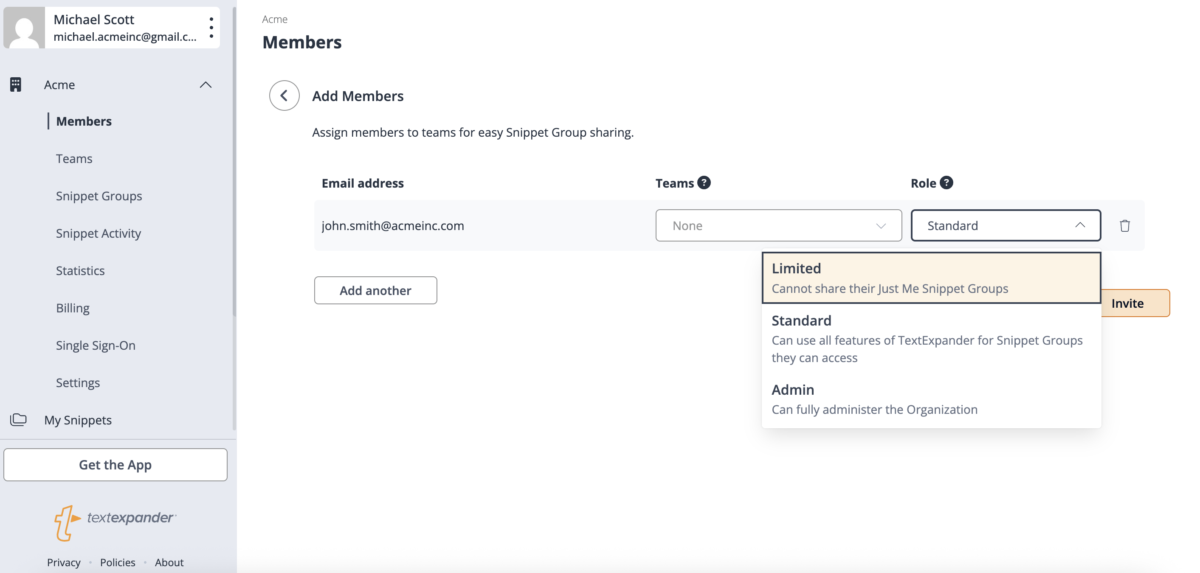
To assign the Limited role when adding new members:
- Sign in to your TextExpander.com account, select “Members” from the sidebar, under your Organization name.
- Click the “Add members” button, enter the member’s email address, and click “Next”.
- Click the “Role” dropdown and select Limited
Assigning the Limited role with SCIM
Team Default Roles make it possible to apply the Limited role automatically at scale. Set a Team’s Default Role to Limited, and when SCIM provisions a user into that Team, the restriction applies automatically with no manual role assignment needed.
Managing roles for Teams
Each Team has a Default Role. By default, that role is set to Standard and is assigned to new members when they are added to the Team. Team Managers and admins can update the Team Default Role in the “Default role” tab on the Team page.
How the Team Default Role works
The Team Default Role only applies when a member is added to the Team. If you change the Default Role later, existing Team members are not updated automatically.
The role change works in one direction only: it can move a member from Standard to Limited, but not from Limited back to Standard. When you set a Team’s Default Role to Limited, you’ll have the option to apply Limited to existing Standard members on the Team. Note that admins and Team Managers will retain their existing role.
How to change an individual team member’s role
Team Managers can see everyone’s role on their Team, but they cannot change individual roles. Only an Organization admin can update a member’s role, including upgrading a Limited member back to Standard, from the member’s record on the Members page.
To set a Team’s Default Role:
- Sign in to your TextExpander.com account, select “Teams” from the sidebar, under your Organization name.
- Click on the Team you want to manage.
- Under “Default Role” select Standard or Limited.
Not able to play the video? Click here to watch the video
If you change the Team Default Role from Standard to Limited and the Team has existing Standard members, you’ll see the number of Standard members and a “Change to Limited role” button. Click the button if you want to change those existing members to Limited.
When a Member is on more than one Team with different Default Roles
If a member belongs to multiple Teams with different Default Roles, the most restrictive role always applies. If any of their Teams has a Default Role of Limited, they will have the Limited role regardless of what other Teams they belong to.
For example: a member joins Team A (Default Role: Standard) and Team B (Default Role: Limited). That member will have the Limited role.
To change this member’s role to Standard, an Organization admin must update it directly on the Members page.
Proposing Snippets for the shared library as a Limited member
If a Limited member has a Snippet they’d like to have added to their Organization’s Snippet library, they can use Requests in TextExpander to submit a Snippet for admin review and approval before it is added to the shared library.
Additional details
- Team Managers and admins on the team are always exempt from Default Role restrictions.
- If ‘Everyone sharing’ is disabled at the Organization level, only admins can share with Everyone regardless of role.
- When a member has the Limited role, some actions are disabled to prevent them from accidentally making a Snippet Group inaccessible. For example, converting an Organization Snippet Group into a “Just Me” Snippet Group.