Repeat Last Snippet Expansion
The last expanded Snippet can be repeated using the Quick Actions menu. Fill-in field values from the original expansion are included in the repeated expansion. You can repeat the expansion as many times as you would like.
When an involved Snippet requires switching between multiple apps or windows, cursor focus can sometimes be lost at the point of expansion, causing the Snippet content not to appear. Rather than starting over, the expansion can be repeated from the Quick Actions menu with all fill-in values intact.
Not able to play the video? Click here to watch the video
How to repeat the last expansion
- Place the cursor where the Snippet should be repeated.
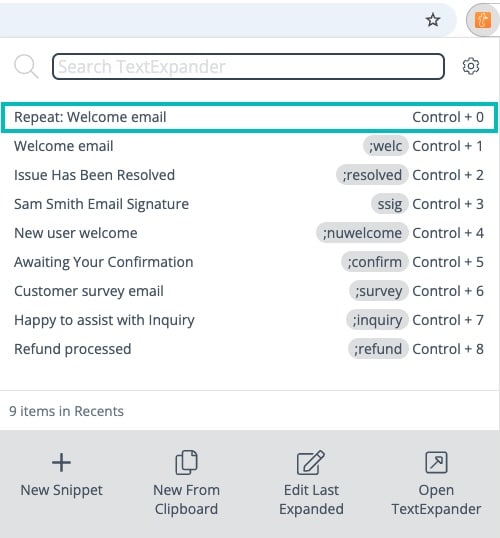
- Open the Quick Actions menu using Shift+Command+/ (Mac) or Shift+Control+/ (Windows, Chrome Extension), or by clicking the Menu Bar Icon (Mac), System Tray Icon (Windows), or TextExpander icon in the Chrome toolbar.
- Press Command+0 (Mac) or Control+0 (Windows, Chrome Extension), or select the top option in the menu.
Additional details
- To expand the Snippet with different fill-in field values, use the Snippet abbreviation and a new temporary fill-in window will appear.