Command Menu
The Command Menu gives you fast access to TextExpander commands and settings from anywhere in the app. It works in the TextExpander Mac app, Windows app, and Chrome Extension when the app is open and in focus, as well as in the TextExpander web app.
How to open and use the Command Menu
- Make sure the TextExpander app is open and in focus.
- Press Command + K (Mac) or Control + K (Windows) on your keyboard.
- Type to search for a command, or use your mouse or the up and down arrow keys on your keyboard to browse the menu.
- Press Return (Mac) or Enter (Windows) or click to select the command you want.
To close the Command Menu without selecting anything, press Escape or click the X in the top corner.
Commands available in the Command Menu
The commands shown in the Command Menu depend on where you are in the app.
Main page
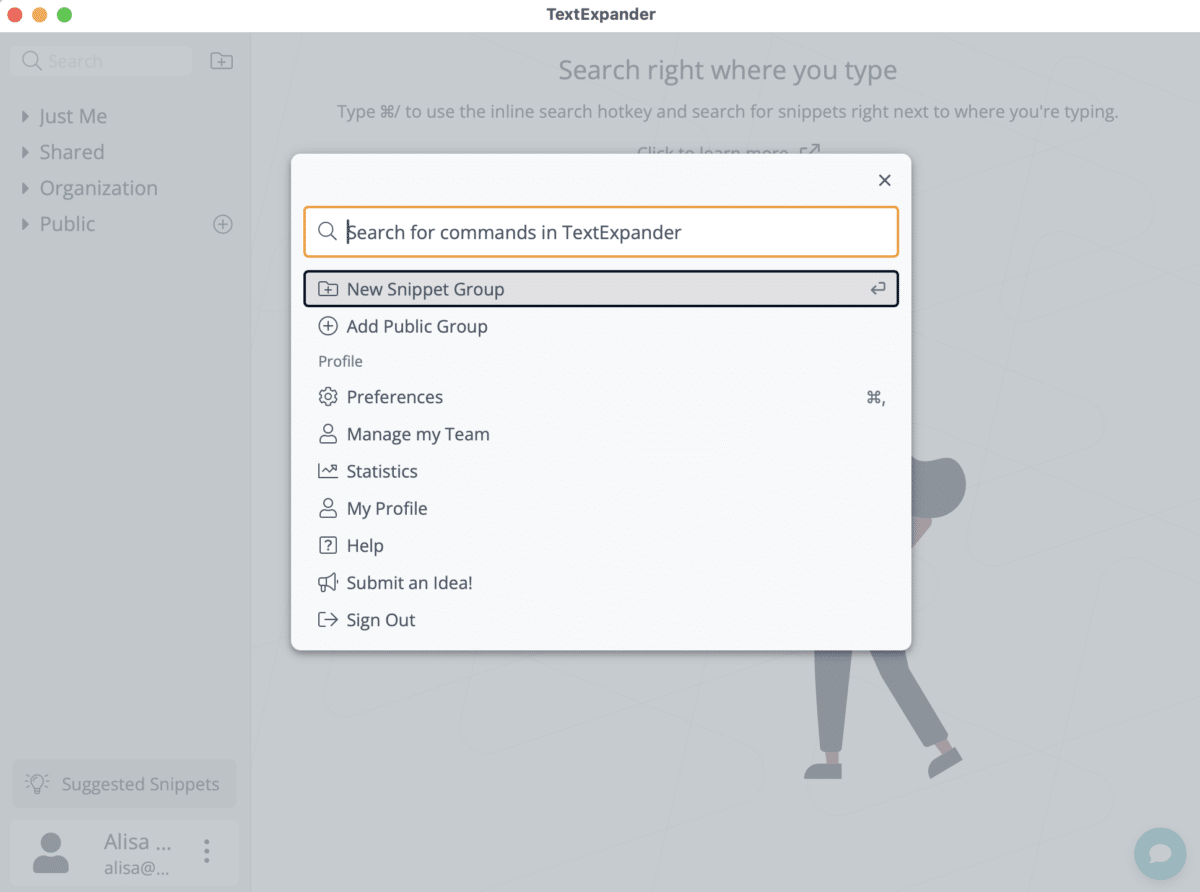
When you open the Command Menu from the main page, you’ll see app-level commands:
- New Snippet Group – Creates a new Snippet Group.
- Add Public Group – Browse and add a ready-made Snippet Group from the Public Groups library.
- Preferences – Opens the TextExpander Preferences window.
- Manage my Team – Goes to your Organization’s team management page.
- Statistics – Opens your TextExpander usage statistics.
- My Profile – Opens your profile settings.
- Help – Opens TextExpander help resources.
- Submit an Idea! – Share product feedback with the TextExpander team.
- Sign Out – Signs you out of your TextExpander account.
Snippet Group view
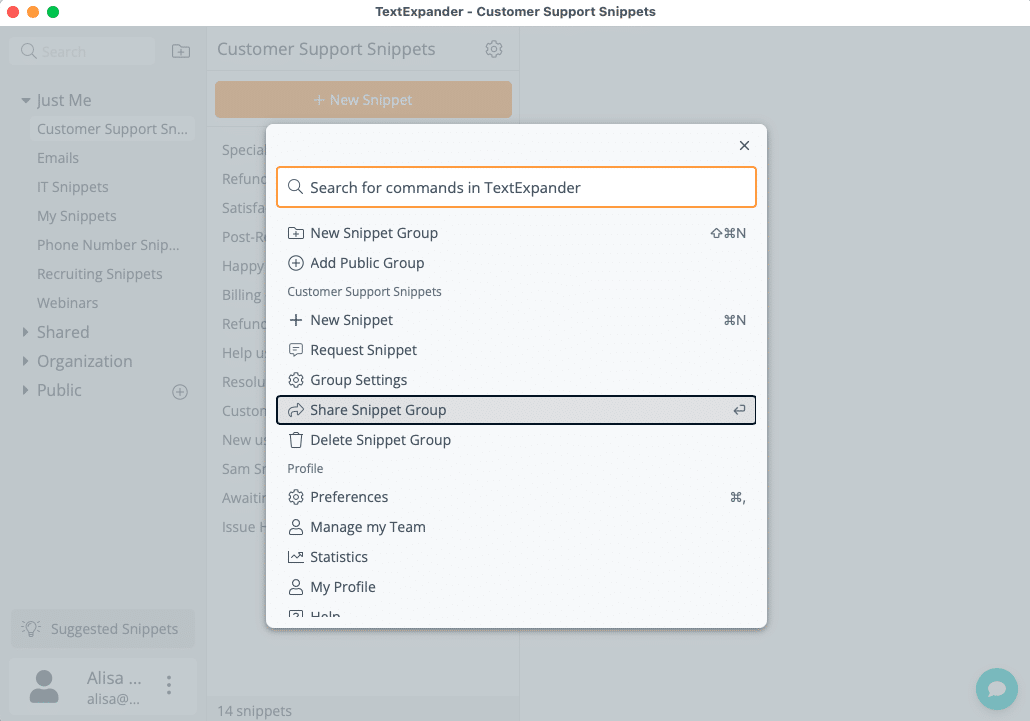
When a Snippet Group is selected, the Command Menu includes the app-level commands above, plus group-level commands:
- New Snippet – Creates a new Snippet in the current Group.
- Request Snippet – Submits a Snippet request to your Group Admin.
- Group Settings – Opens settings for the current Snippet Group.
- Share Snippet Group – Shares the current Group with others.
- Delete Snippet Group – Permanently deletes the current Snippet Group.
Snippet view
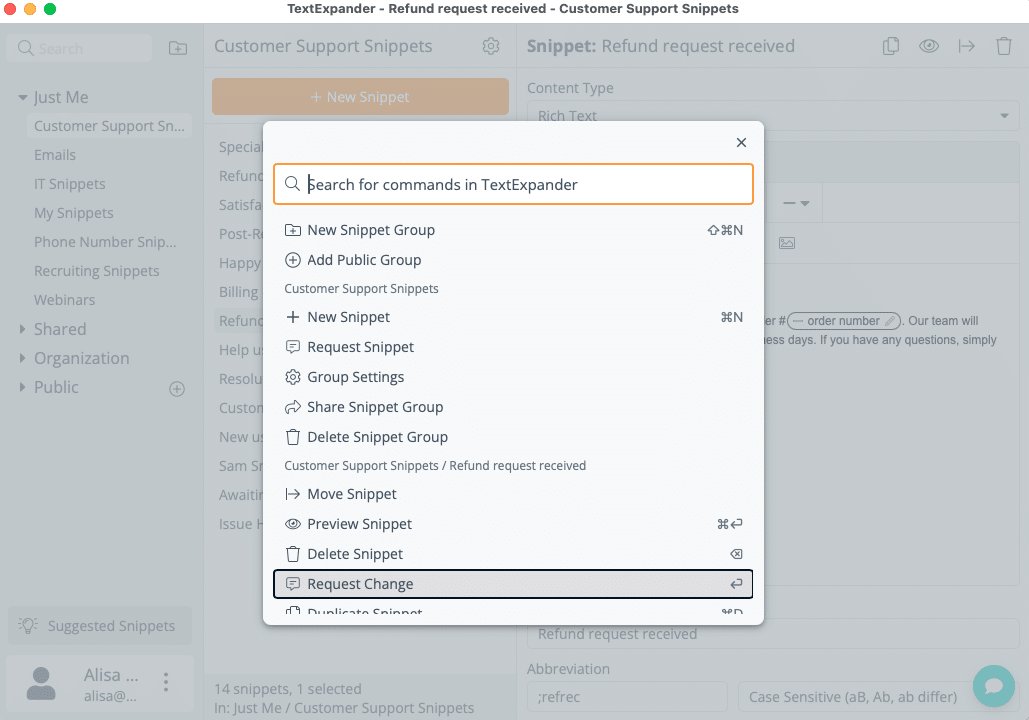
When a specific Snippet is selected, the Command Menu includes the app-level commands above, along with group-level commands for the Snippet’s Group, plus these Snippet-level commands:
- Move Snippet – Moves the Snippet to a different Group.
- Preview Snippet – Previews how the Snippet will expand.
- Delete Snippet – Permanently deletes the Snippet.
- Request Change – Submits a change request to your Group Admin.
- Duplicate Snippet – Creates a copy of the Snippet in the same Group.
Additional details
- In the Command Menu, the list of available commands will show the assigned keyboard shortcut if one is assigned. However, the shortcut doesn’t work while the Command Menu is open. To use the keyboard shortcut for the command, you must first close the Command Menu.
- The Command+K (Mac)/Control+K (Windows) keyboard shortcut is disabled when your cursor is in a text input field. This prevents conflicts with existing keyboard shortcuts.