Gathering Logs
Logs can be easily collected and saved as a zip file on Mac and Windows to share with the TextExpander support team when troubleshooting an issue.
How to gather logs on Mac and Windows
- Click the Menu Bar Icon (Mac) or System Tray Icon (Windows).
- Click the gear icon on the right side of the menu.
- Choose Help > Logging.
- Select a logging level: Basic Logging or Detailed Logging. The selected level determines what is included in the collected logs.
- Choose Gather Logs.
- Select a location on the computer to save the zip file, then confirm.
The zip file is saved to the selected location and can be sent to the TextExpander support team.
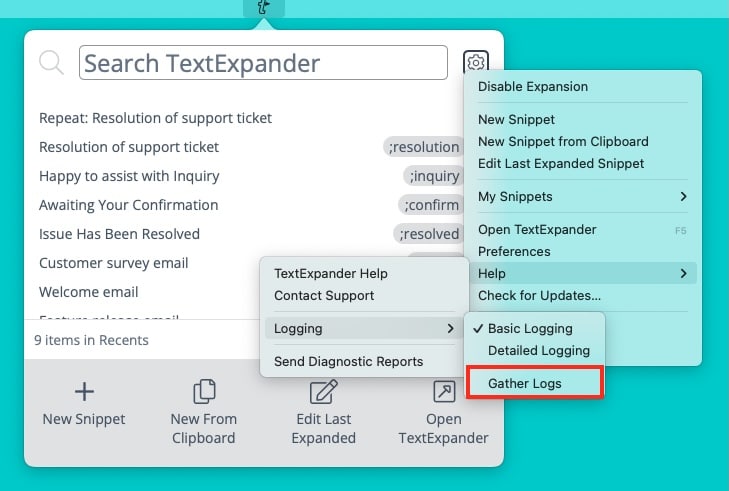
Logging types
Basic Logging: Collects standard activity logs.
Detailed Logging: Collects more comprehensive logs. Recommended when basic logs don’t capture enough information to diagnose an issue.