Piano teachers don’t start with speed. They start with scales, the same slow patterns repeated until your fingers find the keys without looking. Speed shows up later, almost as a side effect.
Typing works the same way. To type faster, learn touch typing, keep your fingers anchored on the home row, and practice for 10 to 15 minutes a day with accuracy as your first goal.
My scales were “The quick brown fox jumps over the lazy dog.” I learned to type by repeating it over and over and over again. The sentence uses every letter of the alphabet, which made it a staple of typing practice. It felt tedious at the time. But it built the habit that matters most, with each finger reaching for its own keys and returning to the home row.
You’ll often see 40 WPM quoted as the average typing speed, sometimes with about eight mistakes per 100 words. The mistakes matter more than the speed. Every one you go back and fix costs extra keystrokes, so a clean 50 words per minute gets more done than a sloppy 70.
Plenty of people skipped the scales and taught themselves instead. That works, up to a point. Then their typing speed settles into a comfortable pace, and they still glance down at the keyboard (the keys haven’t moved in years, but they check anyway).
Here’s what a good typing speed looks like, how to set up your desk and your hands, a 4-week plan to improve your typing speed, and what to do when practice stops paying off.
Key takeaways
- Touch typing is the foundation of faster typing. Typing without looking at the keyboard, with each finger responsible for its own keys, builds the habits that set fast typists apart in large studies of typing behavior, such as using more fingers and making fewer errors.
- Accuracy comes before speed. Errors and corrections add keystrokes, so typing slowly enough to stay near 98% accuracy is the quickest route to a higher speed you can sustain.
- Short, consistent practice beats long, occasional sessions. Measure your baseline, practice a little every day, and set small goals you can track week to week.
- Some of what you type, you’ve already written. Once your technique is solid, reusing the text you type again and again saves more time on that text than any further increase in words per minute.
First, a quick look at what you’re working toward, and what fast typists do differently.
What is touch typing?
Touch typing is the ability to type without looking at the keyboard. Each finger has its own set of keys, and your fingers return to the same starting position, called the home row, after every keystroke. Over time, muscle memory takes over, so you can keep your eyes on the screen instead of searching for letters.
The alternative is often called hunt-and-peck, where you look down, find each key, and press it with one or two fingers. It works, and some self-taught typists get surprisingly fast with it. But it caps your typing speed. Your eyes have to travel between the keyboard and the screen, and your strongest fingers do most of the work while the other fingers sit idle. Touch typing spreads the work across all ten fingers, which is why it’s the usual starting point when you learn to type for speed.
And the research backs that up. In a large study of typing behavior, researchers at Aalto University and the University of Cambridge analyzed 136 million keystrokes from 168,960 volunteers. The fastest 10% of typists used an average of 8.4 fingers. The slowest 10% used 5.3. Fast typists also made fewer errors, which suggests that speed and accuracy improve together when the technique is right.
What is a good typing speed per minute?
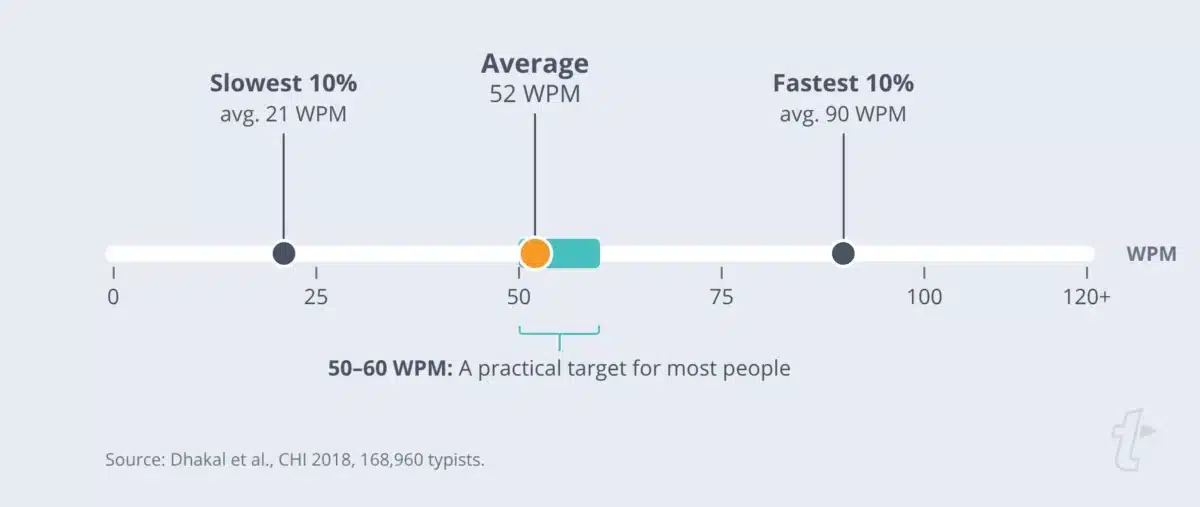
A good typing speed for most people is 50 words per minute or more. In the Aalto and Cambridge study, presented at the CHI 2018 conference, the average speed across all participants was 51.56 words per minute (WPM). The table below shows how the rest of the field compares.
The participants were volunteers who took an online typing test, so they likely type more than the general population. A 2026 study of 10,613 U.S. adults from a national research panel found a lower median, about 38 accuracy-adjusted WPM on a computer and 29 on a smartphone. For the full breakdown by device and age, see our guide to average typing speed. Either way, treat these numbers as a reference point, not a grade.
| Group in the study | Typing speed | Average for the group |
|---|---|---|
| Slowest 10% of typists | Below about 26 WPM | 21 WPM |
| All participants | Wide range | 52 WPM |
| Fastest 10% of typists | Above about 78 WPM | 90 WPM |
| Fastest participants | 120 WPM or more | Not reported |
The participants were volunteers who took an online typing test, so they may type more than the general population. That 40 WPM figure gets repeated a lot, usually without a primary source. The CHI study has a large, published sample, and it puts the average closer to 52. Either way, treat these numbers as a reference point, not a grade.
Is 40 WPM a good typing speed?
Forty WPM is a workable speed for everyday email and documents, and it’s slightly above the 2026 median for U.S. adults on a computer. It’s below the 52 WPM average of the typing-test volunteers in the CHI study, though. The good news? Touch typing and consistent practice are the most direct ways to close that gap.
Is 100 WPM good?
Yes. A speed of 100 WPM is faster than the 90 WPM average of the fastest 10% of typists in the study. At that level, accuracy and comfort usually matter more than further gains in speed.
What typing speed do employers expect?
Many jobs that involve heavy typing, such as transcription, data entry, or administrative support, list a minimum typing speed in the posting, and some companies test it during the hiring process.
U.S. federal clerk-typist and office automation positions, for example, require 40 WPM on a five-minute test with three or fewer errors, according to the Office of Personnel Management.
Some data entry postings ask for 60 WPM or more, along with an accuracy requirement. Requirements vary by role and employer, so check the posting for the number that applies to you.
How much accuracy is required for typing?
Aim for 98% accuracy or higher. Typing.com’s grade-level guidelines set 98% as the minimum accuracy goal for college students and adults, compared with 95% for high school students. As the same guidance points out, 90% accuracy isn’t close to an A, because it means roughly every other word contains a mistake.
Accuracy matters for speed because mistakes cost keystrokes. In the CHI 2018 study, participants pressed an average of 1.17 keys per character that appeared on the screen. The extra keystrokes came from typos, backspaces, and corrections. That’s why many typing tests report two numbers, gross and net.
- Gross WPM is how fast you typed, counting every word.
- Net WPM is your gross speed minus uncorrected errors, and it’s the number that reflects useful output.
The takeaway? If your gross speed is high but your net speed lags behind it, slow down a little. The number that counts will often go up.
How to prepare to type faster
If you want to type faster without strain, start before your first keystroke. A good setup keeps your hands in a consistent position, reduces strain, and makes long typing sessions a lot more comfortable.
Set up your workspace
- Keep your desk clear enough for your keyboard to sit directly in front of you.
- Place your keyboard and mouse within easy reach, so you aren’t stretching.
- Set your monitor at or slightly below eye level, about an arm’s length away.
- Use lighting that’s bright enough to read by without glare on the screen.
Sit with proper posture
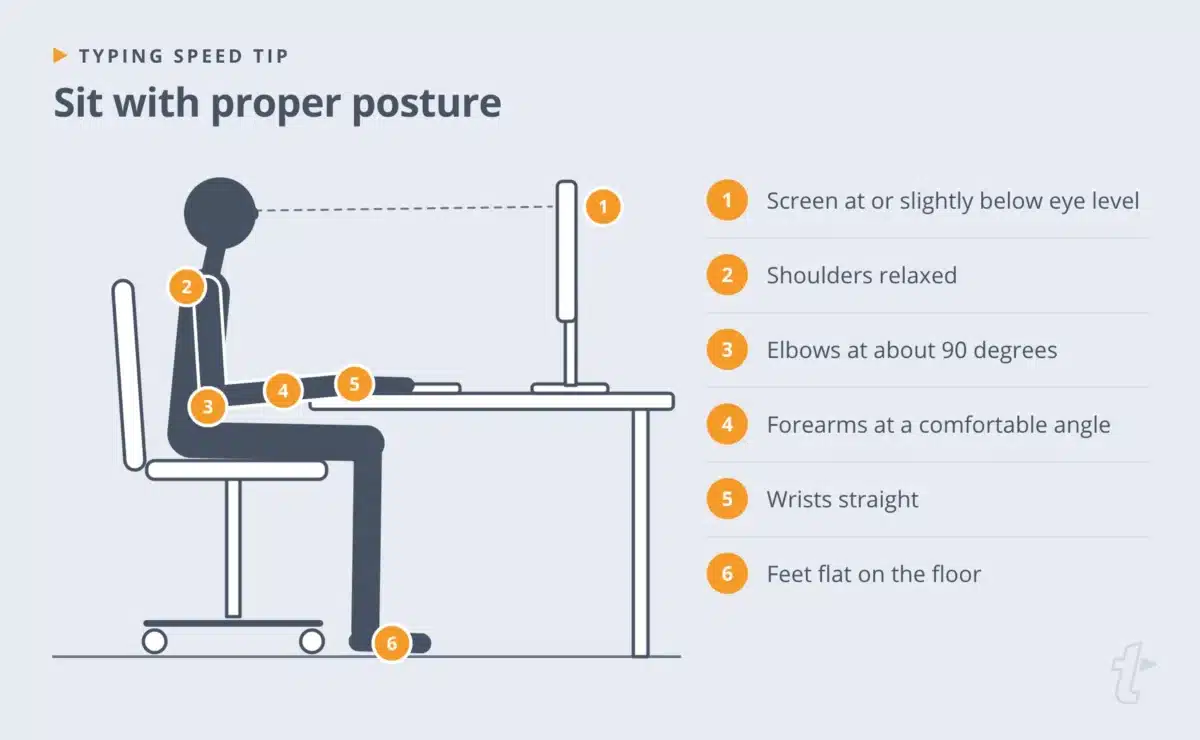
Typing hunched over a laptop on the couch feels fine for about 10 minutes. Then your shoulders start to notice. Proper posture keeps your hands relaxed and your fingers free to move, so run through these points before each practice session.
- Sit up straight with your feet flat on the floor and your back supported.
- Relax your shoulders and keep your elbows close to your body, bent at about 90 degrees.
- Keep your wrists straight and level with the keyboard, not bent up or resting hard on the desk.
- Angle the keyboard so your forearms rest at a comfortable angle, roughly parallel to the floor.
A comfortable setup won’t make you fast on its own. But discomfort will slow you down. If typing causes ongoing pain, talk to a healthcare professional.
Get to know the keyboard
Take one last look down at your keyboard. Most English-language keyboards use the QWERTY layout, a design that dates back to the typewriter. Layouts vary slightly by region and manufacturer, but the principle is the same. Every key belongs to a finger, and every finger has a home.
Learn the home row
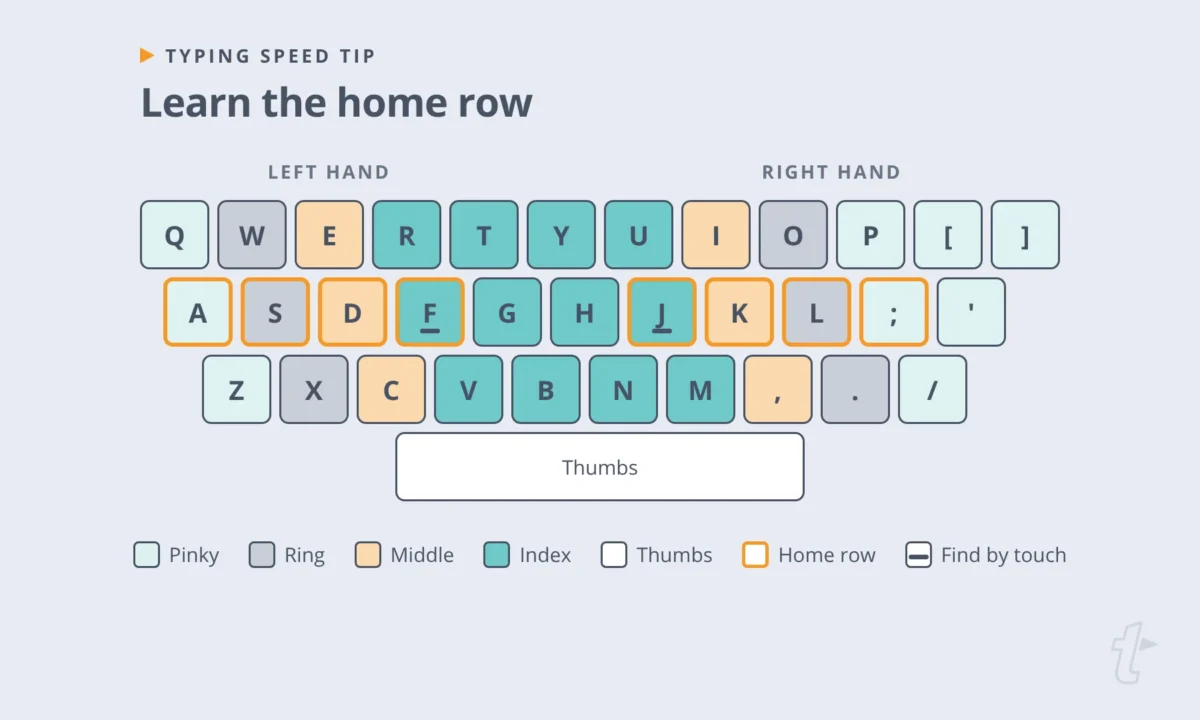
The home row is the middle row of letter keys, where your fingers rest between keystrokes. Your left fingers sit on A, S, D, and F. Your right fingers sit on J, K, L, and the semicolon. Your thumbs rest on the space bar.
Look for the small raised bumps on the F and J keys. They let you find the home row by touch, without looking down. Every time your fingers leave the home row to reach another key, they should return to it.
Use the correct hand position
To type correctly, keep your fingers gently curved so only the fingertips touch the keys. Move your fingers, not your whole hand, and press lightly. Each finger covers a column of keys above and below its home key. For example, your left index finger handles F, R, V, G, T, and B.
If you’ve typed with two or three fingers for years, switching to all ten will slow you down at first. Your old method has years of practice behind it, and the new one needs a few weeks of training to catch up. That dip is normal and temporary, so don’t worry about it.
How to practice typing faster
Practice is where technique turns into habit. The steps below work whether you want to learn to type properly or type faster after hitting a plateau.
Find your baseline
Before you change anything, find out where you’re starting. Take two or three one-minute typing tests and average the results, since one test can be thrown off by a single bad sentence. That’s your starting typing speed. Most tests calculate WPM by counting every five characters, including spaces, as one word. Write down both your speed and your accuracy, because you’ll be tracking both.
If you want to check the math yourself, here’s how a test turns keystrokes into a score. Say you type 1,500 characters in five minutes. That’s 300 words, or 60 WPM gross. If you left six errors uncorrected, most tests subtract them per minute, so your net speed would be about 59 WPM. Running the numbers once makes it clear why accuracy carries so much weight in the result.
Focus on accuracy before speed
Type slowly enough to hit 98% accuracy consistently. Yes, it will feel slow. A pianist learns a hard passage at half speed first, and your fingers need the same patience. The urge to type quickly will be strong, especially on a timed test. Hold back anyway. As your fingers learn where the keys are, your speed will rise on its own, and the gains will hold because they’re built on correct movements.
Practice a little every day
Consistent practice matters more than long sessions, and it’s the most reliable way to build typing skills that last. Ten to 15 minutes a day tends to work better than an hour once a week, because each session reinforces the last one while it’s still recent. Treat it like exercise. Practice when you’re fresh, and stop when your accuracy starts to drop.
Drill the keys and words that slow you down
Most typing tests show which keys you miss most often. Spend part of each session on typing exercises for those keys and the common words that contain them. Then switch to real text, like your own emails or notes, so you type faster where it counts, in your actual work.
Let your fingers overlap
One habit that sets fast typists apart is rollover, or pressing the next key before releasing the previous one. In the CHI 2018 study, fast typists used rollover on about half of their keystrokes. Slow typists? About 8%. Don’t try to force it. Rollover develops naturally as common letter pairs, like “th,” “er,” and “ing,” become automatic. Practicing real words instead of random letters helps.
Set small goals and track your progress
Set a goal you can reach within a week or two, like adding a few WPM while holding 98% accuracy. Retest once a week under the same conditions and record the result. You’ll see programs that promise to double your typing speed in a few hours. Will a few hours of drills double yours? Probably not. Will a month of short, daily sessions move the number? That’s where real progress shows up. Remember to judge it by the trend over several weeks, not a single test.
Follow a 4-week practice plan
If you want a structure to follow, this plan fits into 15 minutes a day.
| Week | Focus | Daily practice |
|---|---|---|
| Week 1 | Home row and hand position | Home row and top row lessons, eyes on the screen |
| Week 2 | Full keyboard, accuracy first | Bottom row and number lessons, held at 98% accuracy |
| Week 3 | Common words and weak keys | Drills on missed keys, then short passages of real text |
| Week 4 | Speed without losing accuracy | Timed tests at a slightly faster pace, with a weekly retest |
What if you could skip the typing entirely?
Touch typing can get you to 50-70 WPM. TextExpander gets you to 200+. Save your most-typed phrases, email replies, and paragraphs as Snippets, then expand them with a short abbreviation. You still type, but you type a lot less.
Get TextExpander for Free. No credit card required.
Common habits that keep you from typing faster
Stuck at the same speed for months? One of these habits is often the reason. Each one is easy to fix once you spot it, and fixing it will do more for your typing skills than another speed test.
Looking down at the keyboard
Every glance down breaks your rhythm and pulls your attention away from what you’re writing. If you can’t stop looking, cover your hands with a light cloth or a sheet of paper while you practice. It feels awkward for a few days, and then it doesn’t.
Pressing too hard
Hitting keys hard tires your fingers and slows the return to the home row. Modern keyboards need only a light press. Try typing a paragraph as quietly as you can (anyone sharing your office will appreciate it) and notice how much less effort it takes.
Practicing only with typing tests
Tests are useful for measuring, but they don’t always reflect how you type at work. Mix in real text, like your own emails, notes, and messages, so your typing skills carry over to the writing you do every day.
Chasing speed before accuracy is steady
Pushing for a higher number before your accuracy is stable builds the habit of making and fixing mistakes. If your accuracy drops below about 98%, slow down until it recovers. Faster typing that you can’t sustain doesn’t help much outside a test.
Best typing tutorials and practice tools
Typing tutors are a structured way to learn to type or hone your technique, with lessons, instant feedback on speed and accuracy, and enough repetition to build muscle memory. The best one is the one you’ll keep using. So try two or three, pick one, and stick with it. Switching between programs makes it harder to compare your results over time. With that in mind, here are good options to start with. All are free to use, though some show ads or offer a paid upgrade.
| Tool | Best for | What it offers |
|---|---|---|
| TypingClub | Learning to type from scratch | Step-by-step lessons with a hand posture guide, typing playback, and progress tracking. Free for individuals and schools. |
| Typing.com | Students and families | Self-paced lessons, typing tests, and games, with free tools for teachers and homeschoolers. |
| AgileFingers | Structured courses with variety | Touch typing lessons with virtual hands, games, programming lessons, and practice with your own text. |
| Keybr | Focused daily drills | Short practice lessons built to improve speed and accuracy. |
| SpeedTypingOnline | Timed tests of different lengths | Typing tests from 30 seconds to 20 minutes, plus a numeric keypad test and custom text tests. |
| Monkeytype | Customizable speed tests | A minimal, highly customizable typing test with several test modes and progress tracking. |
| 10FastFingers | Quick checks in many languages | A one-minute typing test available in more than 40 languages, with results you can compare with friends. |
| TypeRacer | Practice that feels like a game | Live typing races against other players, using quotes from books, movies, and songs. |
If you like a little competition, TypeRacer makes it more fun to push yourself to type faster. For more ways to build the habit, see these typing hacks and practical tips to speed up your typing.
Is it really a typing speed problem?
Typing speed only matters for the text you actually have to type. And a pianist doesn’t rewrite the sheet music every time they play a song they already know. For many people, though, that’s what a good part of the daily typing load looks like. It’s the same email signature, meeting link, reply, address, or set of instructions, typed again from memory. Practice makes it faster. But those words have already been written once, and a copy is probably sitting in your sent folder right now.
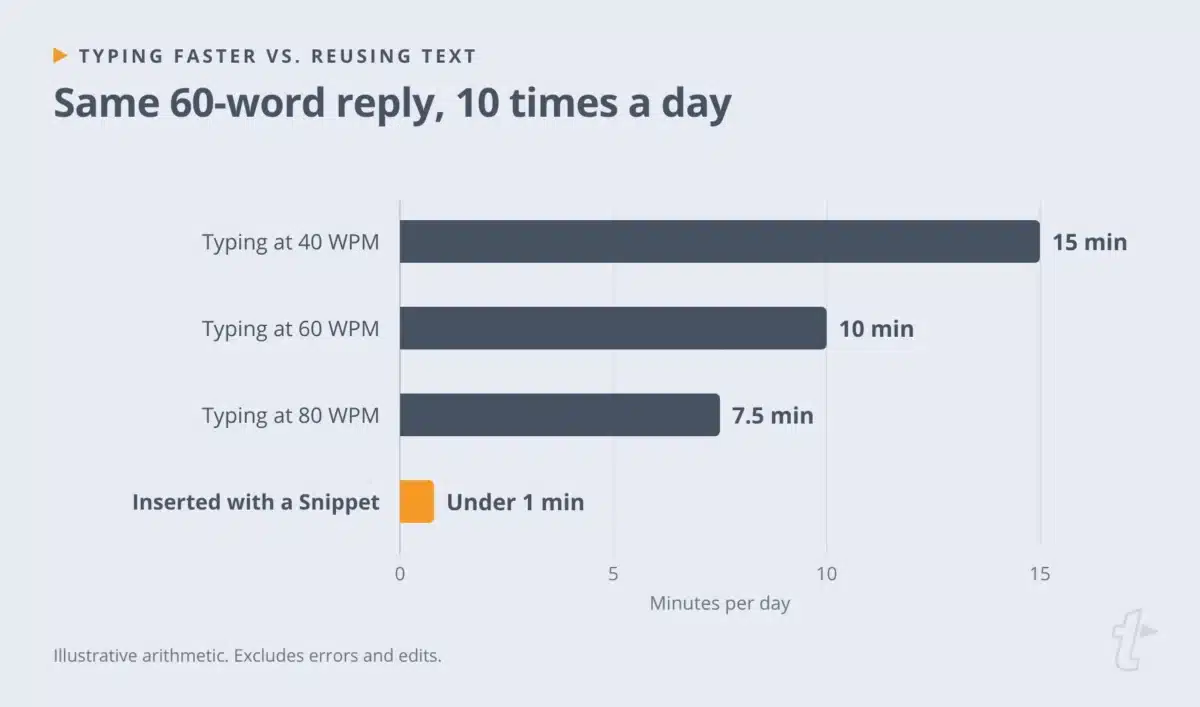
Picture a 60-word reply you send 10 times a day. Here’s how long it takes, depending on how you enter it.
| How you enter the reply | Time per reply | Time for 10 replies a day |
|---|---|---|
| Typing at 40 WPM | 90 seconds | 15 minutes |
| Typing at 60 WPM | 60 seconds | 10 minutes |
| Typing at 80 WPM | 45 seconds | 7.5 minutes |
| Inserting it with a short abbreviation | A few seconds | Under a minute |
These figures are simple arithmetic, not measured results, and they leave out errors and edits. Still, the pattern is hard to miss. Doubling your typing speed from 40 to 80 WPM cuts the time in half. Reusing text you’ve already written removes most of it. So which should you do? Both. Practice helps with everything new you write. Reuse helps with everything you write again.
That’s where TextExpander comes in. In short, what TextExpander does is let you save text you use often as a Snippet and insert it by typing a short abbreviation, in the apps where you already type. You still write the parts that change. The parts that stay the same are a few keystrokes away.
TextExpander is a powerful tool that carries a great deal of potential to save time by removing monotony, centralizing important resources and enabling you to exceed the limits of how quickly you can type.
– Ben King, Manager, Corporate Client Services, Private Health Management
If you want to see how it fits into your own typing, try TextExpander free with the three things you type most often.
Tools to increase your typing output
Once your technique is solid and your typing skills are steady, faster typing comes in smaller steps. At that point, these tools help you produce more text without asking your fingers to move any faster.
Text expansion
Text expansion tools help you type faster on repeated text by turning a short abbreviation into a longer piece of text. TextExpander works across Mac, Windows, Chrome, iOS, and Android. You could set it up so typing ;addr inserts your full mailing address, or ;thx inserts a complete thank-you note.
Snippets can also include Fill-ins, which prompt you for the details that change, like a name or a date, before the text is inserted. Teams can share Snippet groups, so everyone uses the same current wording for common replies and instructions. For ideas on what to save, see these text snippet examples by department.
Brian Deighton, a Senior Inside Sales rep at CompanyCam, saved the sentences he used in lead emails as Snippets. “It was simple, but having those sentences in TextExpander helped me be way more efficient because I no longer had to type the exact same thing over and over again,” he said.
Predictive text
Predictive text suggests the next word or phrase as you type, and you accept it with a key press. It’s built into macOS, iOS, Android, and Google Docs, among others. Lightkey is a dedicated option for Windows and Microsoft Office. For a broader comparison, see our guide to predictive text apps.
Voice dictation
If you need to produce a lot of text and can’t type faster yet, dictation is worth trying. Many people speak faster than they type. Dictation converts speech into text, and it’s built into Windows, macOS, iOS, Android, and Google Docs. Dragon, from Nuance, is a long-standing option for professional dictation, especially in medicine and law. Dictation works best for first drafts, and most people still edit the result by keyboard.
Keyboard shortcuts
Editing shortcuts are another route to faster typing, because fixing text often takes longer than writing it. Deleting a whole word with Option+Delete on a Mac or Ctrl+Backspace on Windows is faster than tapping Backspace letter by letter. Learning the shortcuts you use most, like copy, paste, undo, and switching windows, keeps your hands on the keyboard. For more, see these keyboard shortcut apps.
Where to start
Ready to improve your typing speed? Start where every pianist starts, with the scales. Take a one-minute typing test today. Write down your speed and accuracy. Then spend the next week on the home row, 10 to 15 minutes a day, with accuracy as the only goal. Faster typing builds on correct habits, and correct habits build on short, regular practice.
As you practice, notice what you type more than once. Those are the songs you already know, and you don’t need to type them faster. Save them as Snippets and spend your practice time on the new writing.
TextExpander is free. Your time isn’t.
Create shortcuts for the things you type most and start saving time everywhere you type. Use it solo or build a shared library with your team.
Free forever, no credit card required.
Frequently asked questions
How long does it take to learn to type faster?
It depends on your starting point and how often you practice. Learning the home row and the position of every key usually takes a few weeks of short daily sessions. Raising your speed after that is gradual, and gains of a few words per minute at a time are normal. Practicing for 10 to 15 minutes a day and retesting once a week will show you your own pace of progress.
How can I type faster without looking at the keyboard?
Learn touch typing, which is the standard way to type faster without looking. Rest your fingers on the home row, use the raised bumps on F and J to find your place by touch, and return to the home row after every keystroke. When you practice, keep your eyes on the screen even if it means making more mistakes at first. A touch typing course like TypingClub or Typing.com introduces the keys a few at a time, so you can learn the layout without looking down.
How do I type faster on a laptop?
To type faster on a laptop, use the same touch typing technique you'd use on a desktop keyboard, and pay extra attention to your setup. Laptop keyboards are flatter and closer together, and the screen sits low, which encourages hunching. Raise the laptop to bring the screen closer to eye level and use an external keyboard if you type for long stretches. Keep your wrists straight and avoid resting them on the edge of the case while you type.
How can I type faster on my phone?
Use the tools built into your phone's keyboard. Predictive text suggests the next word, swipe typing lets you trace words without lifting your finger, and dictation converts speech into text. Both iPhone and Android also let you create text replacements, so a short abbreviation expands into a longer phrase. For text you use across your phone and computer, a text expander with a mobile app keeps the same shortcuts on every device.
Should I switch to Dvorak or Colemak to type faster?
For most people, no. Alternative layouts like Dvorak and Colemak place common letters in easier positions, but switching means relearning the keyboard from scratch, and QWERTY remains the default on most computers. Typists reach very high speeds on QWERTY with good technique and practice. Consider an alternative layout only if you have a specific reason, such as comfort, and the time to retrain.
Is TextExpander free?
Yes. TextExpander has a free plan with no credit card required. It includes 5 active Snippets at a time, one Snippet swap every two weeks, and up to 5 team members. Paid plans add unlimited active Snippets and more advanced features, starting with Pro at $5 per user per month, billed annually. See TextExpander pricing for current plan details.