Snippet Recommendations
Overview
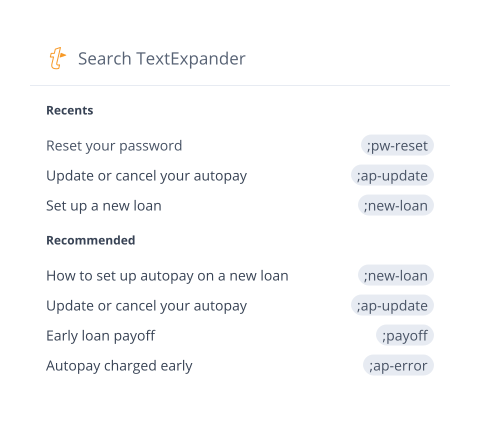
AI-powered Snippet Recommendations suggests relevant Snippets from your existing Snippet library based on the content around your cursor. When you launch Inline Search in the TextExpander Chrome Extension, either via keyboard shortcut Control + period or by clicking the TextExpander Icon, you’ll see your recently used Snippets along with contextually relevant Snippet recommendations tailored to what you’re working on.
Here are some examples of how it works:
- If you’re writing an email about scheduling a meeting, TextExpander will recommend Snippets related to meeting scheduling, such as a meeting invitation Snippet or a Snippet with your calendar link.
- If you’re responding to a patient question about appointment preparation, TextExpander will recommend Snippets like pre-visit instructions, what to bring to your appointment, or insurance information requirements.
- If you’re helping a customer troubleshoot a login issue, TextExpander will recommend Snippets such as password reset instructions, browser compatibility requirements, or account access troubleshooting steps.
Not able to play the video? Click here to watch the video
How to use Recommendations
AI Recommendations are enabled by default for most users and are ready to use immediately in the TextExpander Chrome Extension. Don’t have the Chrome Extension yet? Install it here to get started.
When your cursor is in a text field in your Chrome browser, launch Inline Search as you normally would by typing the keyboard shortcut Control + Period, or click the TextExpander Icon. Hover over each recommended Snippet to preview its content, then click the Snippet you want to expand. The Snippet expands where your cursor is.
Note: If you’re part of an organization account and don’t see recommended Snippets or are unable to enable it in your settings, contact your account administrator as they may have disabled the feature for your organization.
Give feedback on AI Recommendations
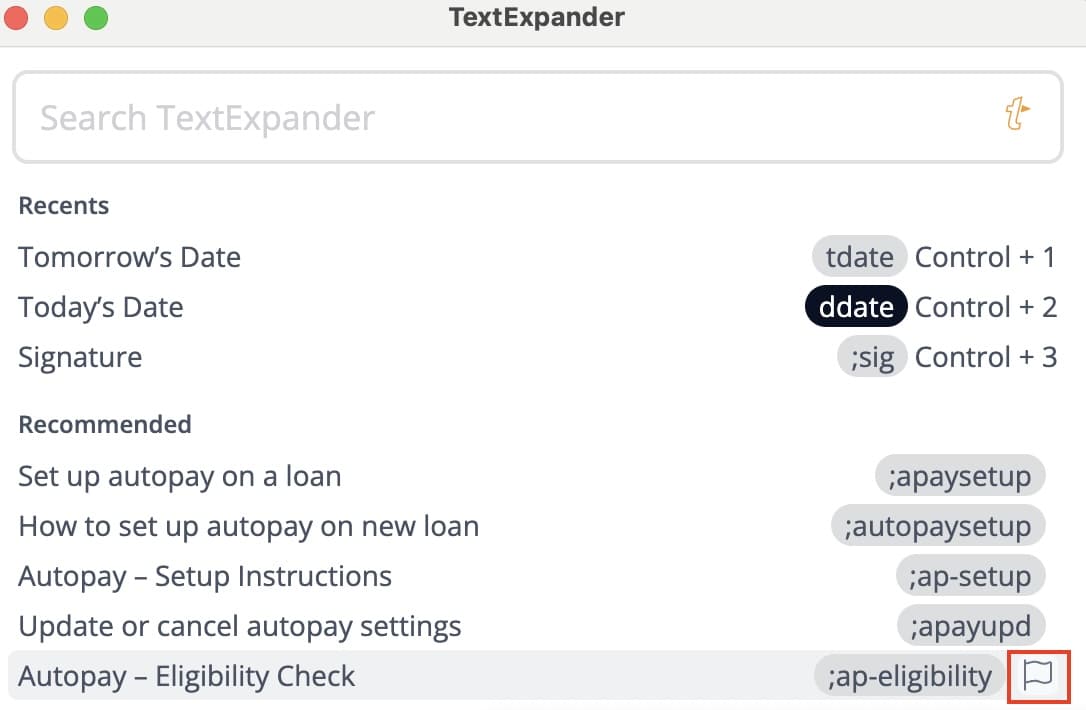
When hovering over a recommended Snippet, you’ll see a small flag icon to the right of the abbreviation. Click the flag if the Snippet isn’t a helpful recommendation. This helps us improve AI Recommendations over time.
Privacy and your data
AI Recommendations uses Gemini Nano, a local AI model that runs entirely on your computer through the Chrome Extension. Your data never leaves your device. The model only analyzes the context of what you’re working on to suggest relevant Snippets from your library. We are not using your data to train a TextExpander LLM, and TextExpander does not learn as you type. TextExpander never stores your keystrokes anywhere. Learn more about how we use your data in connection with AI and How TextExpander handles your keystrokes, keylogging, and Snippet security.
How to turn off AI Recommendations
If you prefer to use the TextExpander Chrome Extension without Recommendations, you can turn off the feature in your settings. Here’s how:
- Click on the puzzle piece icon (Extensions) to the right of the address bar.
- Click the three dots next to TextExpander, then choose “Options.”
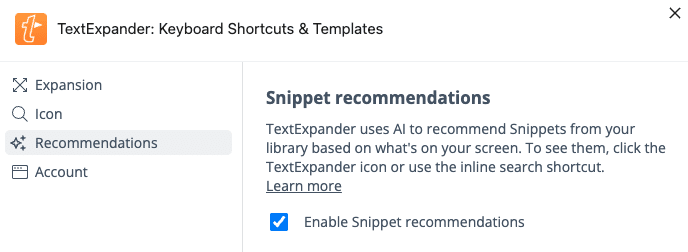
- In the Recommendations tab, uncheck “Enable Snippet recommendations.”
You can re-enable Recommendations at any time by following the same steps and checking the “Enable Snippet Recommendations” box.
Additional details
- If you’re part of an Organization account and don’t see Recommended Snippets, your administrator may have disabled the feature for your organization.
- Snippet Recommendations uses Gemini Nano, a local AI model that runs entirely on your computer through the Chrome Extension. Your data never leaves your device—the model only analyzes the context of what you’re working on to suggest relevant Snippets from your library. Learn more about how we use your data in connection with AI.
- If you recently installed the Chrome extension, it can take a few minutes for AI Recommendations to populate. The larger your library, the longer it may take.
- AI Recommendations also works in Chrome-based browsers that support the TextExpander Chrome Extension, such as Microsoft Edge. Learn how to install TextExpander for Chrome in Edge.
- To use AI Recommendations, your system must meet the following requirements:
- Operating System: Windows 10 or 11, macOS 13 Ventura or later, or Linux
- Note: Chrome for Android, iOS, and ChromeOS on non-Chromebook Plus devices are not currently supported
- Storage: At least 22 GB of free space on the volume containing your Chrome profile
- Built-in AI models are significantly smaller, though exact size may vary with updates
- Processing:
- GPU option: More than 4 GB of VRAM
- CPU option: 16 GB of RAM or more, plus 4 CPU cores or more
- Built-in models can run on either GPU or CPU
- Network: Unlimited data plan or unmetered connection
- Operating System: Windows 10 or 11, macOS 13 Ventura or later, or Linux
- If you use both the TextExpander Mac or Windows desktop app and the TextExpander Chrome Extension and you experience double expansion, we recommend setting your TextExpander desktop application to not expand within Chrome (since the extension will do so):
- Open the TextExpander application’s preferences
- Under expansion, find “Expand Snippet Groups” towards the bottom
- Select the drop-down menu and select “All applications, except…”, then select Chrome