Using the TextExpander Icon to find and expand Snippets
Overview
The TextExpander icon appears anywhere you can type in Chrome, or in the sidebar along the edge of your browser window. It gives you quick, one-click access to your Snippets—no keyboard shortcuts needed.
Click the icon to:
- Open Inline Search to browse your Snippet library, find what you need, and insert it instantly where you’re typing.
- View your recently used Snippets to easily reuse the ones most relevant to your current work.
The TextExpander Icon is currently in early access in the TextExpander Chrome Extension. In the future, it will also be available as part of the TextExpander Mac and Windows apps.
How to access the TextExpander Icon
To see the TextExpander Icon in Chrome, make sure you’re using the latest version of the TextExpander Chrome Extension, version 8.4 or later. Here’s how to install it:
- Go to the TextExpander Chrome Extension in the Chrome Web Store.
- Click Add to Chrome, then follow the onscreen instructions.
- Sign in to your TextExpander account.
Once installed, the icon will appear anywhere you can type in Chrome or in the sidebar along the edge of your browser window.
How to use the TextExpander Icon
Clicking on the TextExpander Icon opens Inline Search and a list of your recently used Snippets.
Inline Search is a search field that appears right where you’re typing. Type part of a Snippet’s abbreviation, content, or label to quickly find the one you need. Hover over a result to preview its content, then click to insert it instantly without leaving your text field. Learn more about Inline Search here.
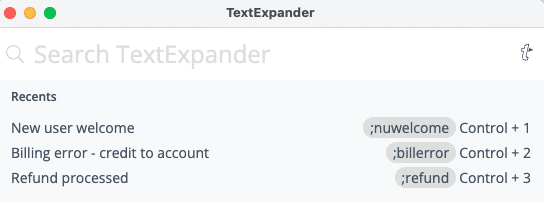
TextExpander Icon menu options
Right-clicking the TextExpander Icon opens a menu of options.
When the icon is inline, the menu includes:
- Move to window edge for 10 minutes
- This moves the icon to the sidebar of your browser for 10 minutes. After that, it automatically returns inline.
- Hide TextExpander icon
- Give feedback
- Settings
When the icon is on the window edge, the menu includes:
- Move to active element
- This moves the icon inline to where you’re typing.
- Hide TextExpander icon
- Give feedback
- Settings
How to enable or disable the TextExpander Icon
To hide the TextExpander Icon:
- Right-click the icon.
- Select Settings from the menu.
- Choose Hide TextExpander icon.
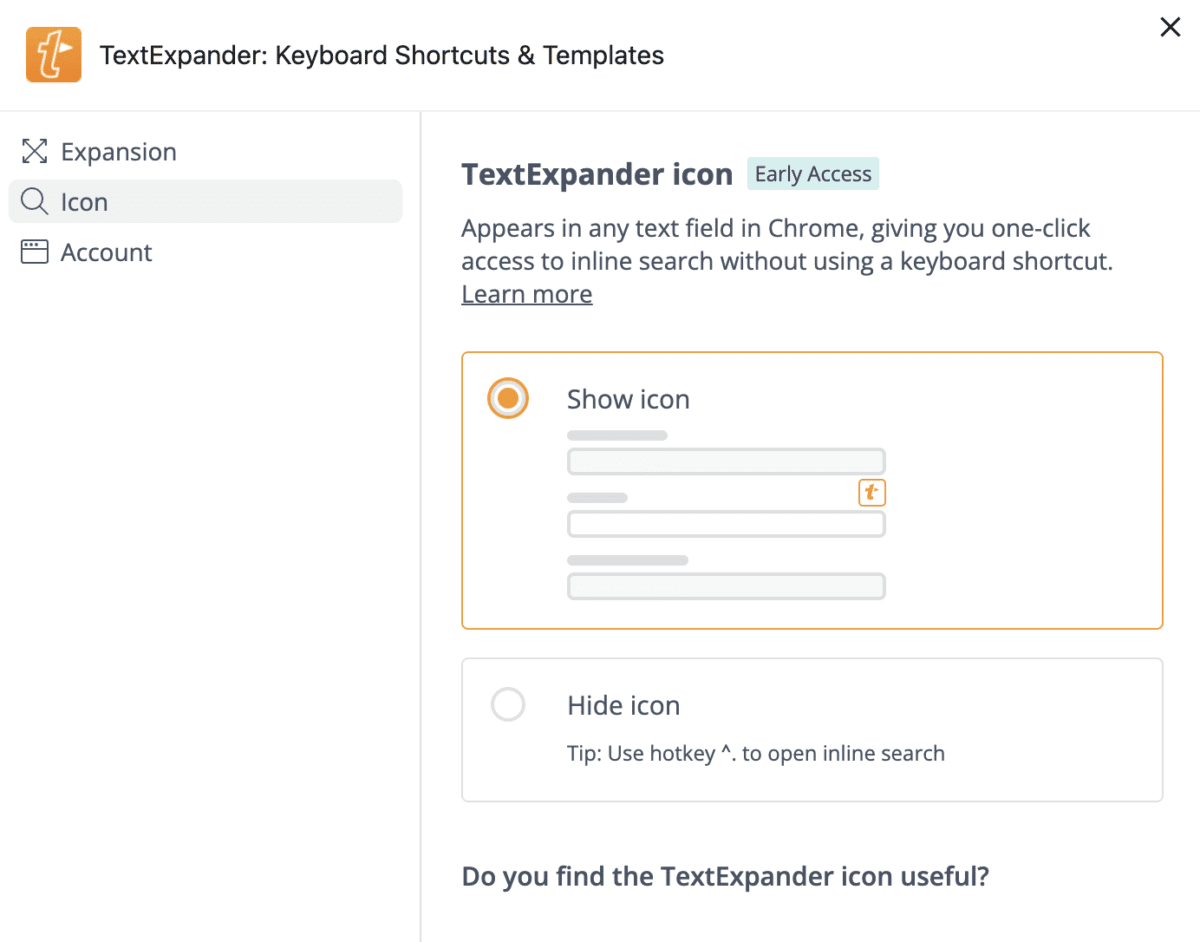
To re-enable the icon if it’s hidden:
- Select TextExpander in your Chrome toolbar.
- Click on the cog icon then “Open TextExpander”.
- Select the three dots in the lower left then click Preferences.
- In the “Icon” tab, choose “Show icon”
Additional details
- The TextExpander Icon appears inline by default, unless you choose the menu option to move it to the window edge. On some websites, such as Google Docs, the icon will automatically move to the window edge.
- For security reasons, the TextExpander Icon will not appear in the URL/search bar.