

You’ve typed a particular message before. Maybe it’s the reply that explains how to reset a password, the note that confirms an interview time, or the follow-up you send when an order has shipped. Each time it’s only a couple of minutes of typing, and each time you think the same thing: I should make this a Snippet.
Then you don’t, and it’s a reasonable call. The message doesn’t feel long enough to turn into a Snippet, and you’ve only typed it five times this week. By the time it comes up again, you’ve forgotten you meant to save it, so you type it out one more time.
The trouble is that it’s the same reasonable choice every time, so your best version never gets saved. It stays buried in your sent folder while you write it again from memory.
TextExpander AI makes creating Snippets even easier. Describe the Snippet you want, or hand it the message you just wrote, and it drafts the Snippet in the editor with a label, an abbreviation, and Fill-ins. You check it, adjust it, and get back to work.

Key takeaways
- Short, frequently repeated messages often feel easier to retype than to save as a Snippet. Because each one seems too small to bother with, the decision to type it one more time repeats until the best version is lost.
- TextExpander AI turns a plain-language request into a draft Snippet with a label, abbreviation, and Fill-ins. The draft appears in the Snippet editor, where you can refine it through conversation or edit it directly.
- TextExpander AI adds Fill-ins when you ask for them in plain language. A request like “add a Fill-in for the order number” creates the field, so new users can build flexible Snippets before they learn the editor’s macro menu.
- AI drafts the Snippet, and a person decides when it’s ready to use. AI edits save automatically, so review the wording, test the abbreviation, and try each Fill-in before the Snippet goes into daily use or a shared group.
Making a Snippet has never been especially hard. Finding the two minutes to do it, in the middle of the work that prompted it, is where most good intentions stall.
Why everyday messages feel like the easiest ones to leave unsaved
Many TextExpander customers follow a simple rule for deciding what to save: if you’ve typed something three times, make it a Snippet. One Key Account Manager described it this way in a G2 review:
It helps me streamline my work by creating shortcuts for anything I type more than three times, whether it’s contract terms, client emails, or notes structure.
Bonnie A. Chen, Key Account Manager, PackageX
A rule like that works when you remember it at the right time. The third time usually shows up mid-task: a customer waiting in chat, an email half written, a meeting starting in five minutes.
For the busiest people, mid-task is most of the day. So the Snippet goes on a mental list of things to do later, next to every other good intention.
New users feel this most, but power users aren’t immune.
- New TextExpander users open an empty Snippet editor and face a blank page plus a few unfamiliar choices: what to call it, which abbreviation to use, and how Fill-ins work. Until they create and expand their first useful Snippet, they haven’t felt the time it saves, so the setup feels like all cost and no payoff.
- Experienced users already have Snippets for their longest and most frequent messages. The shorter ones, like a two-line reply or a quick confirmation, still get typed by hand because each one feels too small to stop for, and that’s where they leave time on the table.
Small messages add up faster than they feel. Here’s the math for five short replies, each sent about twice a workday:

That’s about 90 minutes a week spent retyping five short replies, or roughly 75 hours over a 50-week year. No single reply is the problem. Each one takes a couple of minutes, so the time never shows up as a task you could plan around. It just disappears into the day.
Small saves add up the same way. People using TextExpander have expanded more than 2.8 billion Snippets, saving an estimated 3.8 million workdays across more than 545,000 users worldwide.
But if none of those five replies ever felt worth stopping for, nothing would have changed. Even if the chance to save them comes up at the busiest possible moment or in the middle of a reply, typing it out one more time doesn’t win in the long run.

Describe the Snippet you need, and TextExpander AI drafts it
TextExpander AI is the assistant built into the Snippet editor. It drafts new Snippets and edits existing ones, including adding Fill-ins, from plain-language requests. You tell it what you need, and it places a draft in the Snippet editor along with a label and an abbreviation.
- Start a new Snippet. Click New Snippet in TextExpander.
- Open the TextExpander AI panel. Type / in the Snippet body, or click the AI sparkle button in the bottom corner of the editor.
- Describe what you need. Pick a suggested prompt, or write your own request in plain language.
- Review the draft. The content, label, and abbreviation appear in the Snippet editor.
- Refine it. Ask for changes in the AI panel, or edit the draft yourself.
Specific requests get better drafts. Mention who the message is for, what it needs to do, the tone you want, and any details that change each time. Requests like these give TextExpander AI enough to work with:
- “Write a polite follow-up email to a prospect who hasn’t replied in a week.”
- “Create a Snippet letting a customer know we’ve launched the feature they requested.”
- “Draft a short Slack message asking a teammate for a status update.”
Treat the first draft the way you’d treat a colleague’s first pass: something to react to. For the full walkthrough, see Create and edit Snippets with TextExpander AI in the Learning Center.

Hand it the message you already wrote
The fastest Snippet to make is often the one you just sent. If you’ve written a reply you’re happy with, you don’t need to describe it from scratch. Paste the text into the AI panel and ask TextExpander AI to turn it into a Snippet with Fill-ins for the parts that change.
If you’ve ever searched your sent folder for “that email I wrote in March,” this is the step that ends the search. Writing the good version was the real work, and you’ve already done it. Saving it now takes about as long as typing one request.
Ask for Fill-ins instead of building them
Fill-ins are what let one Snippet cover many situations. They prompt you for the details that change, like a name, an order number, or a date, each time the Snippet expands. They’re also the feature that new users are least likely to set up on their own, because it means learning where each field type lives in the editor. If you haven’t used them yet, the Learning Center explains each Fill-in type.
With TextExpander AI, you ask for the Fill-in the way you’d describe it to a coworker. The same goes for wording and setup changes:
| What you ask | What changes in the Snippet |
|---|---|
| “Add a Fill-in for the customer’s name.” | A Fill-in field for the name is added, so each expansion asks who you’re writing to. |
| “Add a Fill-in for the order number.” | A field for the order number is added, so the same Snippet works for every order. |
| “Change the greeting to use a Fill-in for the recipient’s name.” | The fixed name in the greeting becomes a field you fill in. |
| “Make this more concise.” | The Snippet is rewritten shorter, ready for you to compare and keep or undo. |
| “Use a warmer, more conversational tone.” | The wording is adjusted for tone without changing what the message says. |
| “Suggest a shorter label and an abbreviation.” | The label and abbreviation are updated so the Snippet is easier to find and trigger. |
If you’re on TextExpander 8.6 for Mac or Windows, Fill-in Suggestions give you a second route. Type placeholder text like [First Name] or [Date], and the editor suggests the matching Fill-in to apply in one click. It also spots details left over from older copy, like the “John” in “Hi John,” or a date typed into the text, and offers to turn them into Fill-ins. Nothing changes until you apply a suggestion.
Keep the Snippets you already have current
For people who’ve used TextExpander for a while, new Snippets are only half the story. Libraries drift. A reply written two years ago may still be accurate, but read longer or stiffer than the way your team writes today, and rewriting it by hand is exactly the kind of task that waits for a quiet afternoon.
Open the Snippet, click the AI sparkle button, and describe the change: shorten it, warm up the tone, update a detail, or add a Fill-in to a Snippet that used to be static. The edit appears in the editor, ready to review. If it isn’t what you wanted, click Undo, the curved arrow in the bottom-left corner of the AI panel’s message box.
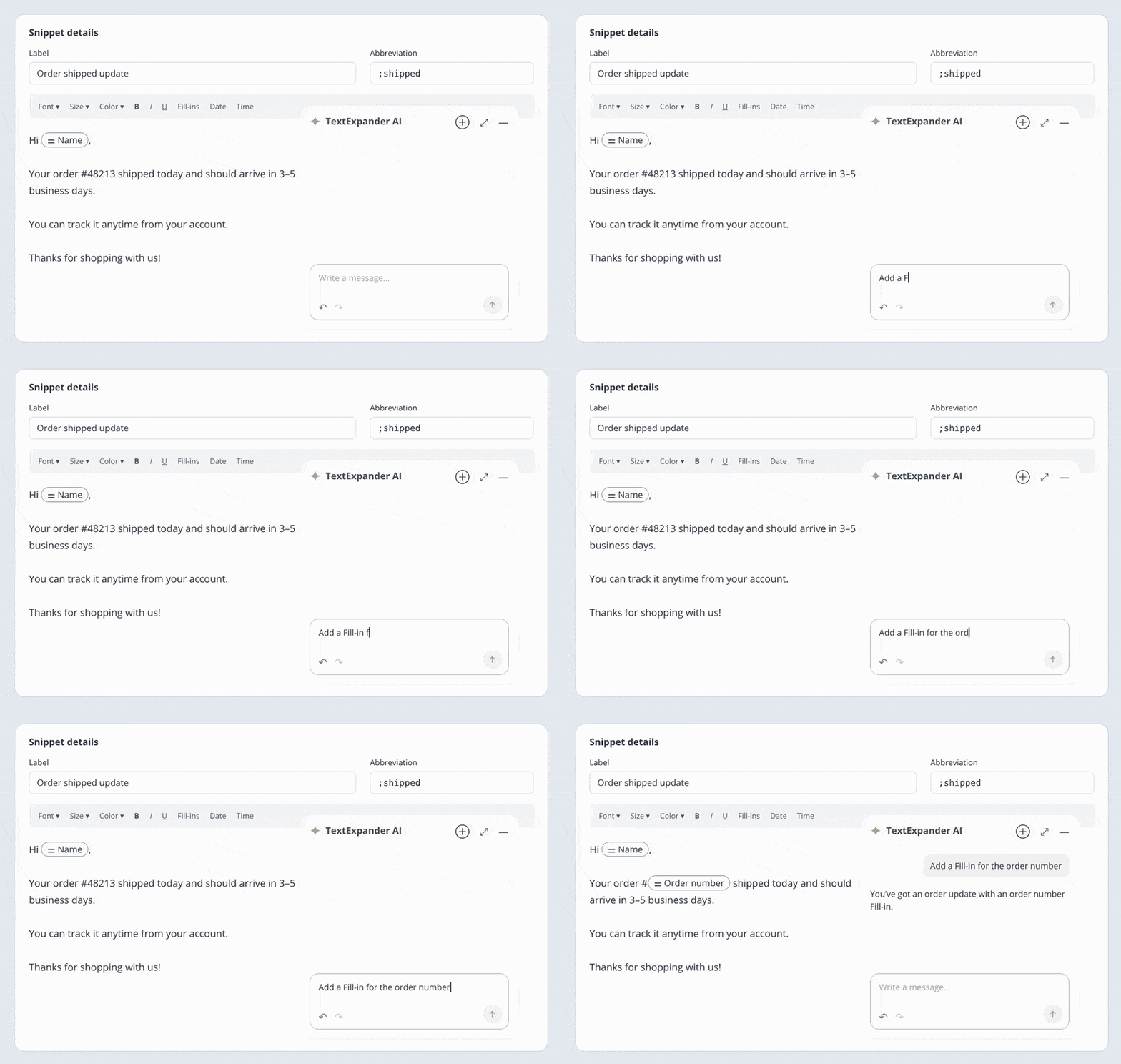
TextExpander AI works on one Snippet at a time, the one open in the editor, and each Snippet keeps its own chat history. When you come back, your previous conversation will be right where you left it. Your Snippet content stays saved.
For bigger jobs, like building a whole Snippet Group from a folder of approved replies, the TextExpander MCP Server lets AI assistants such as Claude, ChatGPT, and Microsoft Copilot create and update Snippets in your library.
Turn your last great reply into a Snippet in seconds
Paste a message you’ve already sent into TextExpander AI and ask for a Snippet with Fill-ins for the details that change. Review the draft, set the abbreviation, and expand it in email, chat, or your help desk the next time the same question comes up.
Start free with the reply you’ve typed three times this week.
You still decide what goes into the Snippet
TextExpander AI writes the first draft. You decide when it’s ready. That matters because AI edits appear in the editor and save automatically, and a Snippet gets reused many times, so anything wrong in it gets repeated, too. Before you use a new or updated Snippet:
- Read it for accuracy and tone. Check facts, links, policy details, and anything the draft may have assumed.
- Check the label and abbreviation. Pick an abbreviation that’s easy to remember and won’t be triggered by accident in normal typing.
- Test the expansion. Type the abbreviation in a test document and watch the Snippet expand.
- Try every Fill-in. Confirm each field asks for the right detail.
This is human-in-the-loop AI at its simplest: AI writes the first version, and you decide whether it’s right. With a Snippet, you only have to make that call once. After you approve the wording, it’s just a few keystrokes away in every app you type in, so you don’t have to recheck it every time you send it.

If the Snippet is going into a shared group, review it as you would any wording your whole team will use.
What TextExpander AI sees, and what it doesn’t
TextExpander AI works from two things: the request you type in the AI panel and the content of the Snippet you’re editing. It doesn’t access your email, your documents, or the rest of your Snippet library.
To generate a draft, your request (and, for edits, the Snippet’s current content) is sent to an external AI model. TextExpander uses Anthropic and Google models under contracts that prohibit training on customer data.
That’s a different setup from AI Recommendations, which suggests existing Snippets as you type and runs on your device. Organization admins can turn TextExpander AI off for their organization. For details, read the Privacy Policy and AI Policy.
If you work in healthcare, keep protected health information (PHI) out of AI requests and out of saved Snippet content. Use TextExpander AI to build reusable language, and use Fill-ins to enter patient-specific details when you expand the Snippet, where your organization’s policies allow.
Start with the message you typed most recently
A Snippet library is only as useful as what’s in it, and what’s in it depends on what people stop long enough to save. TextExpander AI makes it quick to save a message the moment you notice you’re repeating it.
The habit is small. The next time you catch yourself typing something for the third time, open a new Snippet and paste it in. Ask TextExpander AI for a label, an abbreviation, and a Fill-in for whatever changes. Check it, expand it once, and get back to the work that needs you. The fourth time, it’s a few keystrokes.
TextExpander is free. Your time isn’t.
Create shortcuts for the things you type most and start saving time everywhere you type. Use it solo or build a shared library with your team.
Free forever, no credit card required.
Frequently asked questions
Can I create Snippets with AI on the free TextExpander plan?
Yes. Creating and editing Snippets with TextExpander AI is included on every plan, including Free. The Free plan's limit on active Snippets still applies, so check TextExpander pricing if the AI drafts more Snippets than your plan keeps active.
Which TextExpander apps include AI Snippet creation?
TextExpander AI works in the Snippet editor in the TextExpander web app, the Chrome extension, and the Mac and Windows apps starting with version 8.6.
Does TextExpander AI automatically save the Snippet?
Yes. Content that TextExpander AI creates or edits appears in the Snippet editor and saves automatically. You can keep editing it yourself, ask for more changes, use Undo in the AI panel to reverse a change, or delete the Snippet.
Can TextExpander AI create several Snippets at once?
No. TextExpander AI works on the Snippet that's open in the editor, one at a time. To create or update many Snippets using an AI assistant, consider the TextExpander MCP Server, which is in early access.
How is this different from asking ChatGPT to write an email template?
ChatGPT or another AI assistant can write a solid template, but you still have to copy it out, create the Snippet, and add the Fill-ins yourself. TextExpander AI drafts inside the Snippet editor, so the result is already a Snippet with a label, abbreviation, and Fill-ins, ready to expand wherever you type. If you use ChatGPT often, you can also save your best prompts as Snippets so they work in any AI tool.


