

In this series, we’re walking you through the Editing Bar, a useful toolkit to enhance your snippets.
Picture this: You’ve crafted a whole series of email snippets, you’ve got the intro to your clients as a snippet, the followup email, even the next few emails you typically have to send. Each one, perfectly crafted, includes all the helpful links and explanations your customers need, even including your signature. Great!
Work is busy and ever-changing, and now you need to update your email signature with your new job title. So, you go back into each of those carefully crafted email snippets to update the signature portion. But, if only there was a way to update every single signature at once.
There is. Any single piece of information which you are putting in multiple snippets could just be one snippet, one update, that you then reference in other snippets. That’s the magic of nesting snippets in snippets in snippets in… you get the point.
TextExpander lets you put snippets inside other snippets using Insert Snippet from the editing bar.

How to Insert Snippets into Snippets
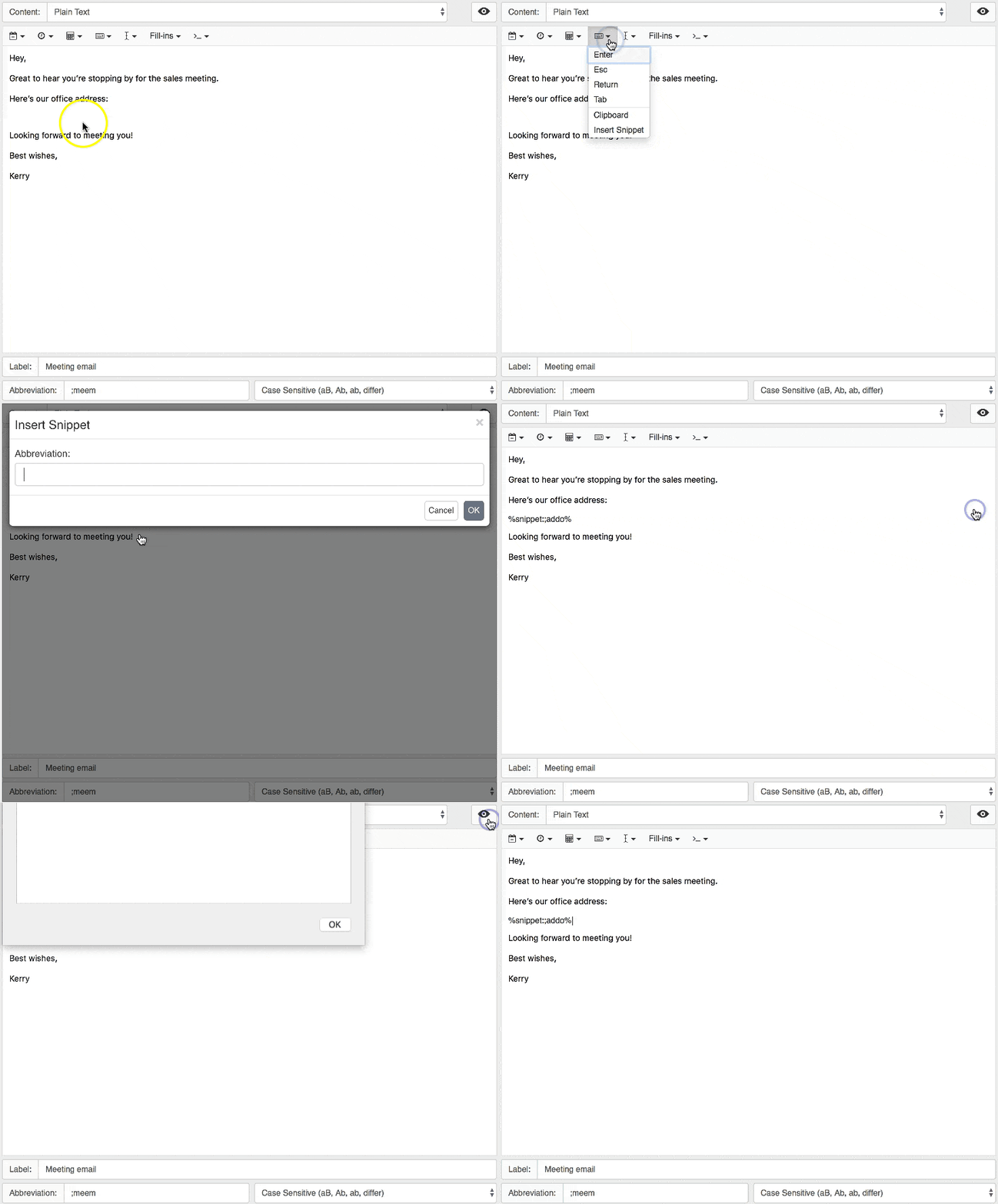
- Place your cursor where you would like your other snippet’s content to appear, then select the keyboard icon in the editing bar and choose Insert Snippet.
- In the following dialog, type the abbreviation for the snippet you’d like to nest. Click OK.
You can quickly check to see what the snippet will look like when expanded with the Preview. Press Preview, the eye icon on the top right, to see how your expanded snippet will look.
Nested Snippets for Teams
To make sharing key information a breeze, you can use shared snippets.
If you work in publishing, you might want everyone using the same language to explain the type of sponsorships you accept, language which was given the thumbs up by the legal team. Make that language a snippet and share with the team. Now each team member can nest that snippet into their own individual responses to make getting back to emails faster and easier.
Then, when the legal team decides they want to change the wording, it’s no sweat to change that language across the board. The legal team will update that single snippet and you won’t need to change a thing.
Now you’re thinking, okay, I’m sharing snippets with the team, but how do I make sure they aren’t oversharing, using the exact same language? I don’t really want all of them to completely sound the same, I just want specific parts of what they say to be the same. When we talk to our customers, we want them to know we are people, after all.
Good point, if you want a more fully templated approach, but want to prompt your team to still incude their personality, you can include multi-line fill in fields in strategic places in the snippet to prompt everyone to write out their own message. So if you work in sales, you can greet your client with your usual quips before detailing the office address and directions for the next sales meeting. All the important information is correct – because you used the office address/directions snippet – plus you’ve assured them they’re talking to a human 🙂
If your team want to get fancy, you can set up personal snippets to be used in shared templates. This is a bit like Mail Merge, where the same placeholder, in this case the snippet abbreviation, is replaced uniquely based on who is doing the expanding. For example, have your team each set up a snippet for their name, with the abbreviation ‘myname’. When expanded, whoever’s typing will see their name appear in the preview, meaning shared templates can have a more personal touch.
There are a few great ways to use nested snippets for teams, including having your own signatures in boilerplate templates. Delve a little deeper with a look at Using Nested Snippets for External Variables in TextExpander.
Nested Snippets for Links
The horror! The website is being redirected and all the links are changing. Luckily, you future-proofed your snippets by creating snippets for links and nesting them. Now all you need to do is update the link snippets with the new URL and all your snippets will follow suit. Phew.
Unlocking the Editing Bar
With nested snippets in tow, there’ll be no stopping your snippets. Our Facebook community is a great spot for more tips and tricks.


