

TextExpander 8.5 is here, with a fresh new look and new features that make everyday tasks faster, from setting up Fill-ins to organizing Snippets and checking your writing. The text expansion app that lets you insert saved text anywhere you type now includes true dark mode, a redesigned Snippet editor, and simpler ways to share, duplicate, and move Snippets on Mac and Windows. All while keeping the workflows you already know.
8.5 also changes how updates reach you. Once you’re on 8.5, most enhancements and fixes arrive automatically in the background, with no download required.
What’s new in TextExpander 8.5 at a glance:
- A modern, more intuitive experience with true dark mode on Mac and Windows
- A redesigned Snippet editor with the most-used fields up front
- Three-dot menus that make sharing, duplicating, and moving Snippets faster
- Automatic background updates for most future features and fixes
- Fill-in Suggestions that turn placeholder text into Fill-ins in one click
- Spell and grammar check, now with a shared Organization dictionary and more languages
- A new What’s New newsfeed that makes it easy to keep up with recently released features
Here’s what’s new and where to find it.
A cleaner, more modern look with true dark mode
TextExpander 8.5 gives the Mac and Windows apps a modern design, with updated typography, spacing, and icons. Menus, popovers, and dialogs now look and behave the same way everywhere, so you always know what to expect.
Working late? True dark mode follows your operating system’s setting on Mac and Windows, so when your system goes dark, TextExpander goes with it.

A redesigned Snippet editor
TextExpander 8.5’s redesigned Snippet editor puts the fields you use most at the top and moves the rest out of the way. Label and Abbreviation sit above your Snippet content, so you can name and set up a Snippet before you start writing. Settings you use less often, like Case matching and Content type, now live under Advanced options, so they’re there when you need them and out of the way when you don’t.
The toolbar has updated icons and better-organized macros with clearer labels, so you spend less time hunting for the right one. Need more room to write? Collapse the macros.

Easier Snippet and Snippet Group management
TextExpander 8.5 moves common Snippet and Snippet Group actions into three-dot menus, so sharing, duplicating, and moving Snippets take fewer clicks. Everything you need is right where you’d expect it.
- Sharing is easier to find. Share, Group settings, and Delete for Snippet Groups now live in a clear three-dot menu instead of under the gear icon.
- Snippet actions are in one place. Duplicate, Move to, and Delete are grouped in a three-dot menu on each Snippet.
- Duplicating is smoother. When you duplicate a Snippet, you can give the copy its own label and abbreviation right away, so it’s ready to use and you don’t end up with an abbreviation conflict.
- Moving takes one click. After you choose Move to, pick the destination Snippet Group and you’re done.

Automatic background updates for Mac and Windows
After you update to TextExpander 8.5, most future features and fixes will arrive automatically in the background, with no new download or install required. Updates apply while the app is idle, so they won’t interrupt you in the middle of your work. That means you get new features and fixes sooner.
For organizations that manage TextExpander updates through MDM, your existing Windows registry-key or Mac plist settings also apply to these background updates. There’s nothing new to configure.
Fill-in Suggestions: Turn placeholders into Fill-ins in one click
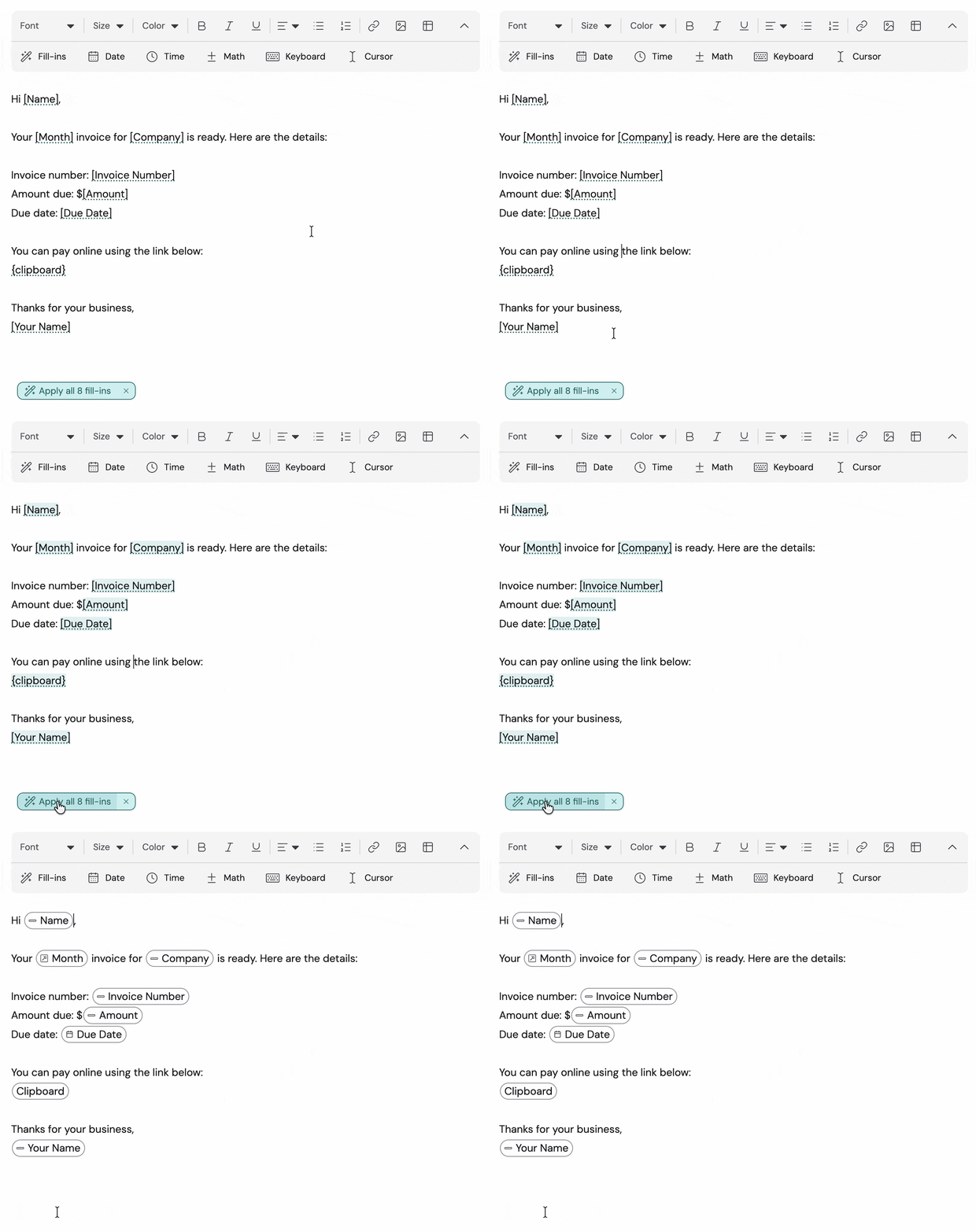
Fill-in Suggestions spot placeholder text in your Snippets and turn it into the right Fill-in or macro with one click. No more hunting through the editing bar to set up each Fill-in by hand.
As you edit a Snippet, TextExpander spots text that likely changes each time it expands, like [First Name], [Date], blank lines, names in greetings, and date-formatted text. It underlines that text and suggests the right Fill-in or macro. For example:
- [First Name] becomes a Single Line Field
- [Notes] becomes a Multi Line Field
- [Date] becomes a Date Picker
- [Month] becomes a Pop-up Menu with the months of the year
- [Clipboard] becomes a Clipboard macro
- “Hi John,” swaps “John” for a Single Line Field labeled “Name”
Click a suggestion to apply it, or apply every suggestion in a Snippet at once. Nothing changes unless you apply it, so you’re always in control.
Spell and grammar check, now with a shared Organization dictionary
Spell and grammar check in the Snippet editor now comes with a shared Organization dictionary and support for more languages. It catches real mistakes while understanding the product names, customer names, and acronyms your team uses every day.
A shared Organization dictionary. When a valid term gets flagged, choose Add to dictionary from the suggestion popover. It’s added to your Organization’s shared dictionary, so it won’t be flagged again for anyone on your team. Admins can let anyone add and remove terms, or limit changes to admins only.
Now with more languages and regional variants. Full spelling and grammar check now covers English (US, UK, Canada, and Australia), German, French, Spanish, and Dutch, with spelling support for Portuguese (Brazil). So if your team writes in UK or Canadian English, words like “colour” and “centre” won’t be flagged as typos.
Suggestions stay suggestions. TextExpander only changes your text when you select a suggestion, and it never stops you from saving a Snippet. Fill-ins, date fields, and other Snippet elements are skipped, so they aren’t treated as spelling errors. Admins can also turn spell and grammar check on or off for the whole Organization.

Stay in the know with the What’s New newsfeed
The new What’s New newsfeed shows you the latest TextExpander features and enhancements right inside the app. Since most updates will now arrive automatically in the background, it’s the easiest way to see what’s changed and how to make the most of it. To check it out once you’re on TextExpander 8.5, click your name in the lower-left corner, then select What’s New.

How to get TextExpander 8.5
TextExpander 8.5 is rolling out gradually over the coming weeks. To see if it’s ready for you, open TextExpander on your Mac or Windows computer, click your name in the lower-left corner, choose Preferences > Updates, and click Check for Updates. If an update is available, click Install Update, then Install and Relaunch after it downloads.
New to TextExpander? Get started free and see how much time your team can save!
TextExpander is free. Your time isn’t.
Create shortcuts for the things you type most and start saving time everywhere you type. Use it solo or build a shared library with your team.
Free forever, no credit card required.


