Create Snippets with TextExpander AI
Overview
TextExpander AI drafts your first Snippets during setup, based on how you work and what you type most. Each draft is a starting point you can edit, rename, and save. After setup, you can generate a new Snippet any time you need one.
Who can use this feature
TextExpander AI Snippet creation is available to Organization admins on accounts created with a work email address. To use it, both of the following must apply to you:
- You signed up with a work email on your company’s own domain.
- You are the Organization creator or an Organization admin on that account.
Note: TextExpander AI Snippet creation is currently available to Organization admins on a rolling basis. Access will expand to all Organization members soon. If you’d like access, please contact Support.
How to create your first Snippets during setup
- In the Getting Started checklist, open step 3 to start the TextExpander AI guided flow.
- Answer the 3 short questions about your work:
- What kind of work do you do?
- What do you type over and over the most?
- Who do you usually send it to?
- Click “Continue.” Your first Snippet drafts appear in seconds.
Reviewing your drafts
TextExpander AI presents 3 drafts, one at a time. Each draft shows a label, an abbreviation, and the full Snippet content, and all of it is editable before you save.
The first draft is plain text with no Fill-ins. Each draft after that adds a Fill-in or other macro, so you see how they work in context. By the third draft, you have a small working library.
- To save a draft and move to the next one, click “Save and continue.”
- To skip a draft that doesn’t apply to your work, click “Not relevant.”
Tip: New to Fill-ins? They let a single Snippet serve multiple situations. Learn more in Using Fill-In-The-Blank Form Fields in Snippets.
Saved drafts go into your My Snippets/Just Me folder.
How to create Snippets on demand
Once setup is complete, you can generate a new Snippet any time without going through the guided flow again.
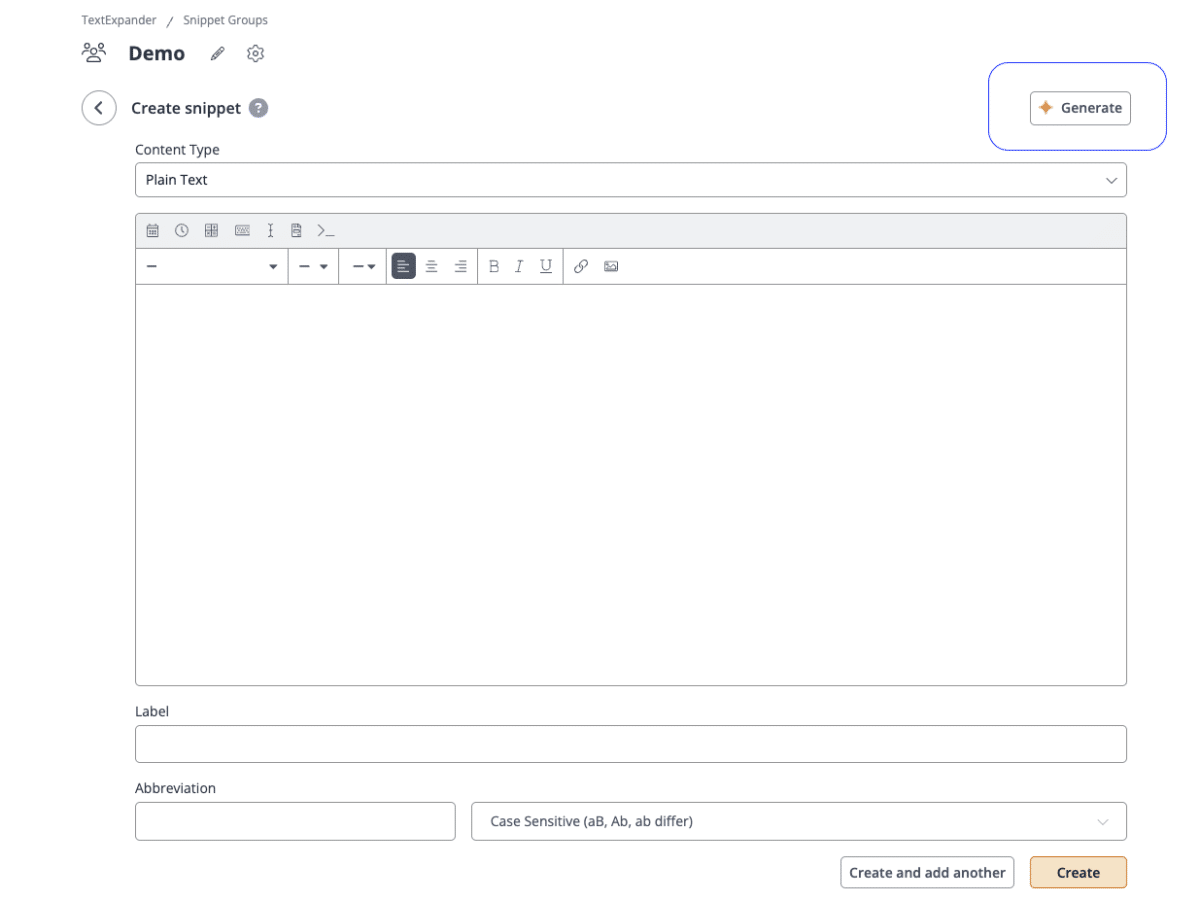
- Open the TextExpander web app and select the Snippet Group where you want to add the new Snippet.
- Click “New Snippet,” then select “Generate” from the dropdown.
- In the Generate dialog, describe what you need in plain language. For example: “A reply for customers requesting a refund.”
- Click “Generate.” TextExpander AI creates a draft with a label, an abbreviation, and body text.
- Edit the draft, then click “Create” to save it to your library.
Tip: The more specific your description, the better the draft. Mention the audience, the tone, and any phrases you always use.
Your data and privacy
TextExpander AI works from the answers you give in the guided flow and the descriptions you type in the Generate dialog. It does not access your email, documents, or anything else you have stored.
Your inputs and generated drafts are treated as your customer data. TextExpander does not use them to train or improve any AI model.
To read more about how TextExpander handles your data, see the Privacy Policy and AI Policy. If you have this feature and would like to have it turned off, contact Support.
Need help?
For questions about eligibility, usage, or anything else related to TextExpander AI, contact Support or reach out to your account manager.