

At its heart, TextExpander helps you communicate smarter by typing text—and a lot of it—for you. Today we have a small tip that can make a big difference in your workflows: TextExpander can automatically press the tab key for you in your web browser, emails, other tab-able forms.
Fun with TextExpander Macros: The Tab key
TextExpander supports a variety of macros – shortcodes that insert bits of information such as date, text from your clipboard, text from other snippets, and more. TextExpander macros also perform actions, such as pressing the Return key or placing your cursor in a specific part of an expanded snippet.
One supported macro is the Tab key. This means that TextExpander can insert some text, press Tab for you, then insert more text. This can be extremely powerful in myriad scenarios, but let’s explore a couple of of simple examples to get you started.
Tab Through Emails and Forms
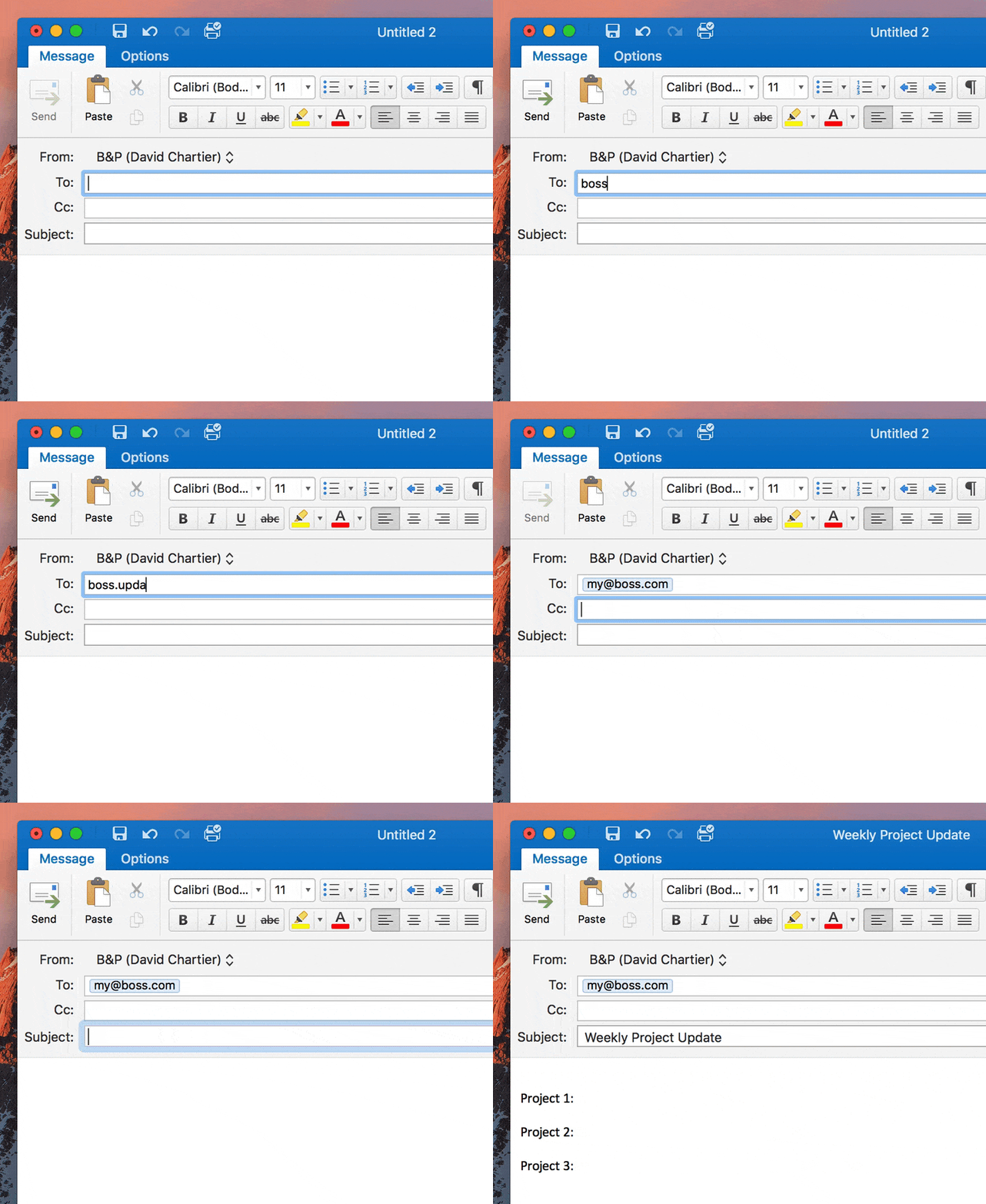
Let’s say you regularly send your boss an email with status updates on various projects. For the sake of this example, maybe you generally use the same subject line and email structure, filling in the blanks with any changes. This is a perfect job for TextExpander and the Tab macro.
With a couple keystrokes or a quick search, you could start a new email, then trigger a TextExpander snippet that:
- Automatically types your boss’ email address
- Presses Tab
- Fills in the standard email subject
- Presses Tab
- Fills in the standard email body with project information
- Places your cursor in the first spot where you need to add information
Another great scenario for the Tab macro is filling in web forms. To fill in a form, you’ll need the info you want in each field separated by Tabs. Place a Tab macro in the same places you’d have to press the Tab key if you were filling out the form manually.
Where to Find Tab and Other Macros
To apply a macro, hit the keyboard icon in the editing bar. Available key options are Enter, Escape, Return, and Tab.

Go forth and macro
Tinker with this a bit and try some of your own snippet workflows. This is pretty powerful stuff that can dramatically speed up your workflows. You can learn more about macros here.
We’d love to hear how you use macros in your snippets, or if you have feedback and questions. You can reach us on our TextExpander support page, on Twitter @TextExpander, and LinkedIn.


