
Once you start using TextExpander for Mac, PC, iPhone, and iPad to communicate smarter, you’ll want to fill it with visual blocks of text you can type with just a short abbreviation. To help you out, TextExpander comes with a set of snippets. One such snippet touches on something many of us type day in and out: dates. The fun part is, TextExpander has some great tools for letting you customize date formats (that is, January 17, 2021 vs 01/17/21), including automatically inserting dates in the past and… the future.
The Basics
If you don’t have TextExpander yet, grab a free demo for Mac, PC, or iPhone, and iPad. The date snippet that comes with TextExpander can be found in the Sample Snippets group. When you use this snippet (try it by typing “ddate” without the quotes), it will automatically type out the current date, and it goes something like this:
abbreviation: ddate snippet:result: May 20, 2019
But what if you prefer three-letter month names, or dashes instead of spaces? What if your company requires a specific date format in all correspondence, or your work involves stating due dates in the future? TextExpander has some killer tools to help here.
The Fun
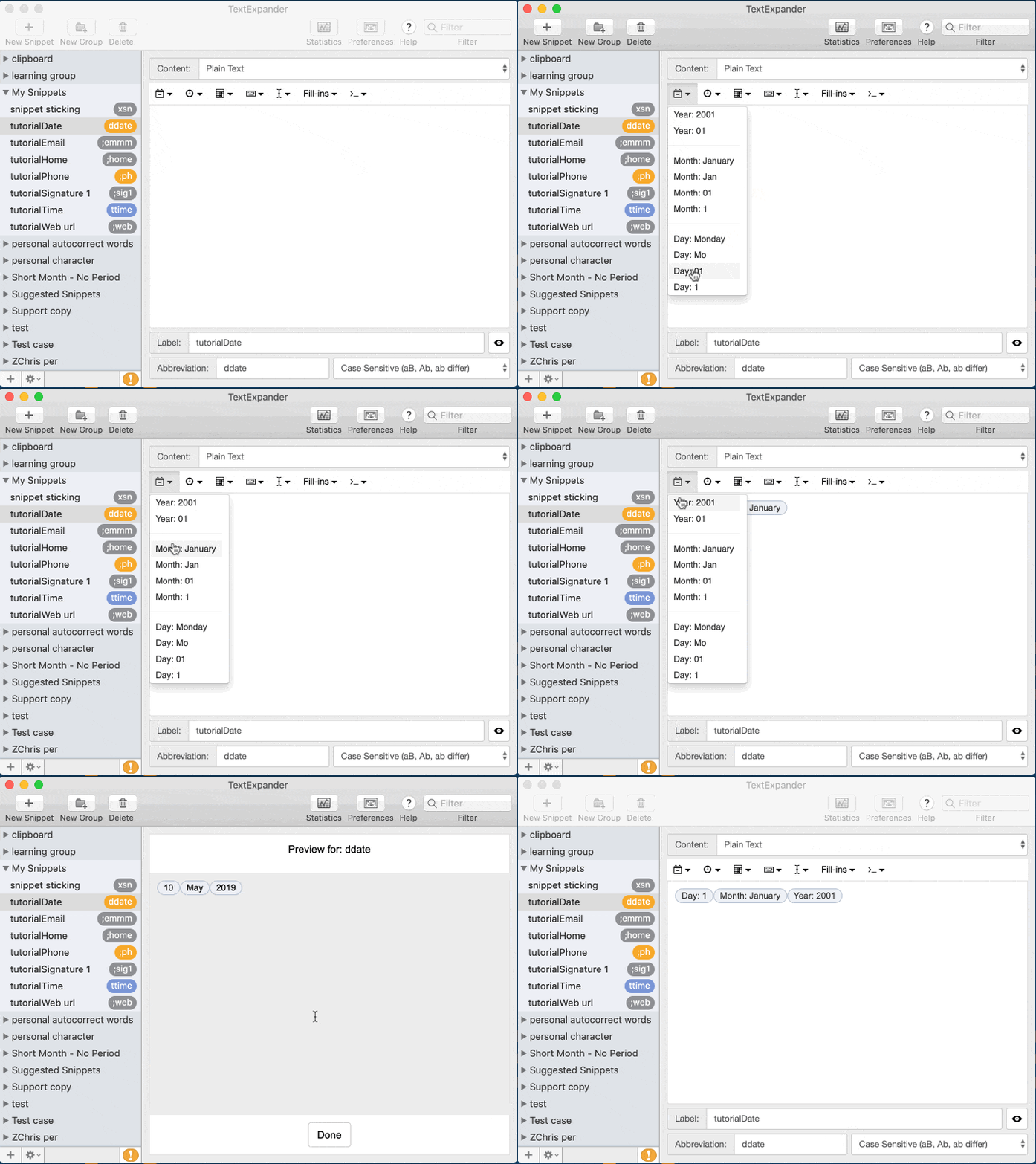
If you want to create date snippets all your own, open TextExpander on any device. You can either customize our built-in date snippet, or click the (+) button to start from scratch. These snippets are built with visual blocks of text as shown in the example above), sometimes called “macros”—a sort of shortcut that tells TextExpander to grab the piece of date that the visual bubble combination refers to. It’s up to you to organize those little blocks into an order which produces the full date you want.
Once you’re editing your snippet, check out the buttons on left side of the editing toolbar—the calendar, clock, and calculator:
- Use the calendar button on the left to add year, month, and day options
- Use the clock button hour, minute, second, and AM/PM
- Use the calculator button to harness date math bubbles, which automatically calculate dates in the past and future
The Examples
Here’s a two-digit day, two-digit month, and four-digit year snippet, separated by dashes:
snippet:result: 20-05-2019
Let’s say you often ship items to customers and want to give them a specific date range for when their item should arrive, five to seven days from now. This is where the calculator button and its date math options can come in real handy. For example:
snippet:result: should arrive between May 25 and June 1
Bonus tip: To quickly preview snippets that use codes like this, tap the eye icon in the bottom right of the editor (Mac only).
TextExpander has a lot of flexibility to help you automate the handling of dates in your correspondence. Be sure to play with these options in the editor, but we also have a visual editor guide if you prefer.